
Adaptive bitrate
Without adaptive bitrate every viewer receives exactly what the encoder sends. A 1080p stream at 5 Mb/s then buffers for anyone whose connection is slower than about 6 Mb/s. With it on, Unda makes several qualities of the stream and each viewer's player picks the best one their connection can carry, switching as it changes.
It is off by default, because it costs real CPU, and it applies to browser and HLS viewers only. RTMP and SRT viewers, recordings and restream destinations always get the original.
Turning it on
- The server needs FFmpeg (
install.sh --with-ffmpeg, orsudo apt install ffmpeg; the Docker image includes it). For an NVIDIA card, install the NVIDIA driver sonvidia-smiworks. - In the dashboard, Server → Transcoding: switch it on and pick the encoder. Unda lists what this server has (the CPU, each NVIDIA card, Intel Quick Sync, VAAPI devices, Apple VideoToolbox) and tests each one; an encoder that fails its test says why and can't be chosen. Save tests your choice again before applying it.
- On a stream's Output tab, under Adaptive bitrate, switch it on for that stream. It starts at once and stays on when the encoder reconnects and when the server restarts. Clients can switch it on for their own channels too; the switch works while the stream is offline, and then starts with its next broadcast.
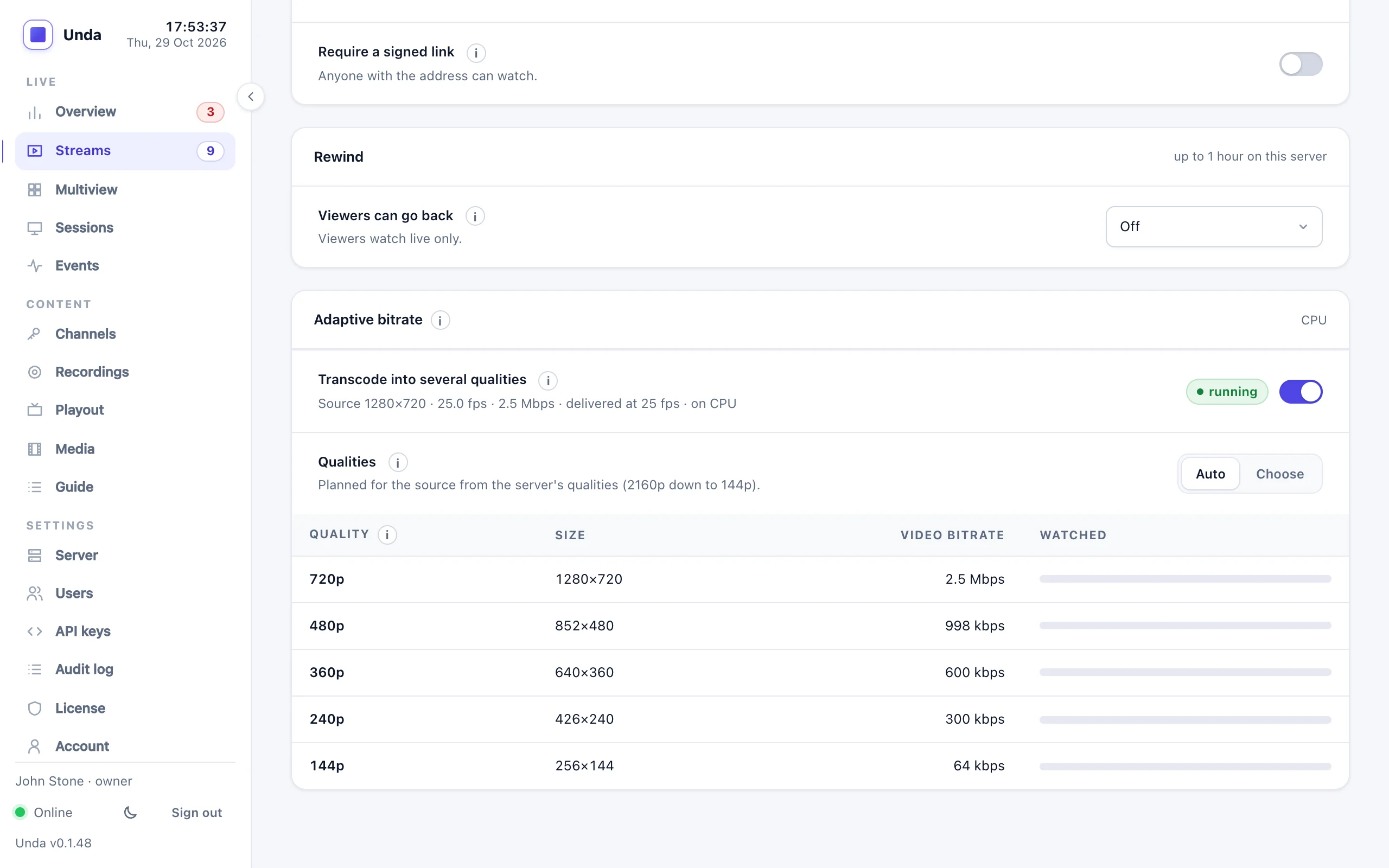
There is no limit on how many streams are transcoded at once. When the CPU stays above 85% for a minute, the dashboard raises a CPU alert, and the Output tab warns before you add another stream. You can still set a limit (Streams at once) if you prefer.
What viewers get
The watch page switches to the adaptive version by itself and shows a Quality menu. For your own player use https://tv.example.com/hls/<name>/master.m3u8.
The default qualities, which are ceilings:
| Quality | Video | Audio |
|---|---|---|
| 2160p (4K) | 15000 kbps | 128 kbps |
| 1080p | 5000 kbps | 128 kbps |
| 720p | 2500 kbps | 128 kbps |
| 480p | 1000 kbps | 96 kbps |
| 360p | 600 kbps | 64 kbps |
| 240p | 300 kbps | 48 kbps |
| 144p | 64 kbps | 24 kbps |
Unda measures each stream for a few seconds and plans the qualities for it:
- never bigger than the source, and in the source's shape: a phone streaming portrait gets portrait qualities, with no black bars;
- never more bitrate than the source justifies: a 1080p stream at 1.5 Mb/s is offered 1080p at about 1.5 Mb/s, not 5. A stream that starts quiet (a still picture, an encoder warming up) is planned again once it carries clearly more, which restarts its qualities once;
- the source's frame rate, up to 30 (50 and 60 are halved);
- keyframes every 2 seconds whatever the encoder sends, which also keeps the delay low when an encoder is set badly.
The 144p quality plays on connections as slow as about 250 kbit/s.
Sources bigger than 4K, over 120 fps, over 60 Mb/s or without video stay as they are; the stream's Output tab says why.
Choosing the qualities yourself
Under Qualities on the Output tab, Auto is the planning above. Choose lets you pick the qualities for one stream instead:
- tick up to 8 sizes from 2160p, 1440p, 1080p, 720p, 576p, 480p, 360p, 240p and 144p;
- type each one's video bitrate; the suggested value is shown beside it;
- each smaller size needs less bitrate than the one above it;
- sound follows the size (128 kbps down to 24 kbps), as in Auto.
What you type is used up to what the source justifies, as in Auto: a quality can't look better than the stream it is made from, so a higher bitrate would only cost viewers and the server. The stream's Output tab shows the bitrates in use and, under the i beside Quality, which ones were held back. Clients can give each size up to twice its suggested bitrate (1080p up to 10000 kbps); operators up to 50000 kbps.
Sizes bigger than the source are left out, and each size keeps the source's shape, as in Auto. When you open Choose, it starts from the qualities Auto is making for the stream now, so Save qualities right away keeps them as they are.
Saving changes a live stream at once: its adaptive bitrate starts again with the new qualities, and viewers watching it start again once. RTMP and SRT viewers, recordings and restreams are not affected. Several changes within 30 seconds start it again once, with the last one. Clients choose the qualities of their own channels; operators of any stream. Auto goes back to the planning above.
Server cost
Per 1080p stream, with the default settings:
| Encoder | CPU | Memory |
|---|---|---|
Software (hardware: none) | about 1.2 CPU cores | about 0.9 GB |
| Apple VideoToolbox | about 0.35 cores | about 0.2 GB |
A 4K stream also gets the 2160p quality, which costs much more: in our test a 4K stream took about 3.4 CPU cores and 2.8 GB, against about 2 cores and 1.2 GB without 2160p. For 4K, use a graphics card, or leave 2160p out by listing your own qualities under transcode: renditions: in unda.yaml (the example file shows the format).
A 4-core, 8 GB server runs about two adaptive streams on the CPU alongside everything else. A GPU takes most of that load off the CPU.
Unda test-encodes with your NVIDIA, Intel or AMD (VAAPI) card before using it, and shows why if it fails.
Graphics cards
With an NVIDIA card chosen under Server → Transcoding, Unda shares the card between adaptive streams and 24/7 channels. Adaptive streams also decode and resize their pictures on the card. Each job goes to the card with the most room, and when every card is busy the job runs on the CPU instead.
TV outputs and bundle channels always encode on the CPU. TV equipment needs a bitrate that never goes above the one set, and in our tests NVIDIA's encoder went above it in busy scenes, so pictures reached the TV too late to show. The CPU's encoder holds the rate exactly.
Unda keeps the card's encoder below about 85 % and leaves the rest of the work to the CPU. It learns what your card really costs while its jobs run and keeps that, so after a restart the same jobs go to the card.
Jobs don't have to stay where they started. Unda moves them by itself, with no restart needed:
- The card is full (encoder above 95 % for 30 seconds): one job at a time moves to the CPU, as long as the CPU has room (under 70 %).
- The CPU is overloaded (85 % or more for 30 seconds): jobs on the CPU go back to the card at once, up to four at a time, while it has room.
- Otherwise, work on the CPU still goes back to a card with room, one job at a time.
What a move costs depends on the job, so they don't all move the same way:
| Job | When it moves | What viewers notice |
|---|---|---|
| Adaptive stream | First, whenever needed | Nothing much: players carry on |
| 24/7 channel | While the card or the CPU is overloaded, the least watched first; otherwise only while nobody watches it, or as a programme starts | The stream restarts: players reload (about 10 seconds on the watch page), restreams and recordings reconnect |
A job that moved stays put for 10 minutes, so nothing goes back and forth. When the card and the CPU are both full, nothing moves, and the CPU alert says the server has no encoding room left.
Server → Transcoding shows each card's load, where every job runs and the latest moves, and each move is in Events. A stream's Output tab, a 24/7 channel's Output tab and the Restream rows also say where each job runs. On a server with an RTX A5000, moving two 1080p adaptive streams and fourteen 720p 24/7 channels onto the card halved the CPU they used.
When your graphics card isn't listed
Server → Transcoding says why under the encoder list, and what to do:
The driver isn't running. Install the NVIDIA driver (on Ubuntu:
sudo ubuntu-drivers install) and restart the machine. With Secure Boot on, the driver must be signed for it to load.Unda can't see the card's device files, or NVIDIA's test says
cuInit(0) failed -> CUDA_ERROR_OPERATING_SYSTEM. Installs made before v0.1.41 hide graphics cards from Unda (PrivateDevices=true) and block the local sockets NVIDIA's encoder needs (AF_UNIX). Run the installer again, or:bashsudo mkdir -p /etc/systemd/system/unda.service.d printf '[Service]\nPrivateDevices=false\nRestrictAddressFamilies=\nRestrictAddressFamilies=AF_INET AF_INET6 AF_NETLINK AF_UNIX\n' | sudo tee /etc/systemd/system/unda.service.d/gpu.conf sudo systemctl daemon-reload && sudo systemctl restart undaUnda runs in Docker. Only an Intel card can be given to the container (
devices: [/dev/dri]indocker-compose.yml): Unda's image has no AMD driver and no NVIDIA encoder. For an AMD or NVIDIA card, install Unda without Docker. On a server whose web server already holds ports 80 and 443 (nginx, Caddy, Apache), use the installer's--behind-proxy(Install).NVIDIA's test says "No devices were found". The driver is loaded, but it can't start the card. First run
nvidia-smi -Lyourself: if it says the same, the cause is the machine, not Unda, and nothing on the machine can use the card.sudo dmesg | grep NVRMthen showsRmInitAdapter failed. What to try, in this order:- Another driver version.
ubuntu-drivers listshows the versions Ubuntu offers for the card. Install another closed one, for examplesudo apt install nvidia-driver-580, then restart the machine. Older cards (GeForce 10 and Quadro P series, 2016-2017) can fail on one version and start on another. Installing the previous version goes back. - The closed driver, not
-open. NVIDIA's open drivers (nvidia-driver-XXX-open) only run cards from 2018 (Turing) on. - The machine. If no driver starts the card: turn on "Above 4G Decoding" in the BIOS, update the board's BIOS, or try the card in another slot. A card that starts nowhere may be faulty.
- On a cloud server, ask the provider. The BIOS and the card are theirs.
systemd-detect-virtprintingkvm,vmwareor similar means a virtual machine with the card passed into it: then the usual cause is on their host, often a card that didn't reset when the machine restarted. Send them theRmInitAdapter failedline and ask them to reset the card on the host and check that it works there.
- Another driver version.
Unda can't open the card. Add the
undauser to therendergroup (sudo usermod -aG render unda) and restart Unda. The installer does this itself from v0.1.41.This FFmpeg has no encoder for the card. The card is listed but can't be chosen.
ffmpeg -hide_banner -encoders | grep -E "nvenc|vaapi"shows what your FFmpeg has; Ubuntu's and Debian's own (sudo apt install ffmpeg) includes both.
After a change, press Detect again.
If FFmpeg crashes it is restarted within a few seconds; after 10 failures in a row the stream carries on without adaptive bitrate.