
24/7 channels (playout)
A playout channel turns video files into a channel that never stops: it plays them at the times a schedule gives, fills any gap with a slate, black or a looping video, and hands over to a live stream (from vMix, OBS or any encoder) as soon as it goes live, going back to the schedule when it ends.
The channel is an ordinary stream. Viewers watch it at /watch/tv1, it can be restreamed to YouTube, recorded, given adaptive bitrate, or put in a multi-channel bundle, exactly like a stream from an encoder.
Setting up a channel
Everything is done in the dashboard, by operators and above, or by a client running their own channel (see Channels for your clients):
- Upload the files every channel shares (idents, adverts) on the Media page. MP4, MOV, MKV, MPEG-TS, MXF and the like all work. You can also copy files into the server's media folder (
/var/lib/unda/mediawith the installer;paths.media_dirto change it) withscp,rsyncor SFTP; they appear by themselves. - On the Playout page, click New channel. Give it a name (the stream it publishes, like
tv1), a picture size, what plays between items (black, or a video from Media looped) and, if you like, a live input. The schedule's time zone starts as yours. The channel goes on air at once, playing its filler. - On the channel's page, click Add videos on the Playlist to upload the channel's own videos, build the playlist (below) and click Save playlist. The channel plays it within a few seconds.
The ⋯ menu at the top of the channel's page has Settings, which changes its picture, bitrate, filler or live input (the channel restarts, so viewers reconnect once; the playlist is kept), and Delete channel, which deletes the channel and its own media files (its as-run log is kept).
Channels for your clients
If you host streams for other organisations, each client can run their own 24/7 channels:
- A client (an account with the streamer role) sees Playout and Media in their menu, makes channels there, uploads their own videos and edits their own playlists. They see only their own channels and files.
- Their 24/7 channels count toward the same channel limit as their stream channels (set when you invite them, or on Users), and each one is a live stream for the license.
- The picture size, frame rate and bitrate of a client's channel are set by operators (the server's standard, 1280×720 at 30 fps, until you change it in the channel's Settings): they decide how much of the server the channel uses.
- A client's live input can only be one of their own streams.
Each channel's own files, and shared files
Every channel has its own folder of files, and there is one set of shared files that every channel may use (station idents, jingles, adverts):
- Add videos on a channel's playlist uploads straight into that channel's folder: there is no folder to choose, and the files are in the playlist's lists as soon as they have been checked.
- On the Media page, Upload to chooses where a file goes: one of the channels, or (operators only) the shared files. A channel's own files are named
channels/<channel>/<file>; everything else is shared. - A channel's playlist and filler can use its own files and the shared ones, never another channel's. The editor offers only those, and the server refuses anything else.
- Clients can use the shared files but not change or delete them.
- Deleting a channel deletes its own files, so a later channel of the same name starts empty.
- Files copied in by hand follow the same rule: put a channel's own files in
channels/<channel>/inside the media folder. - A streaming channel (from the Channels page) has a folder too, for the video or playlist it shows when its other inputs have no pictures. Upload into it with Add videos on the channel's Input tab, or choose it under Upload to on the Media page, where it is listed as "(backup picture)".
The channel's page
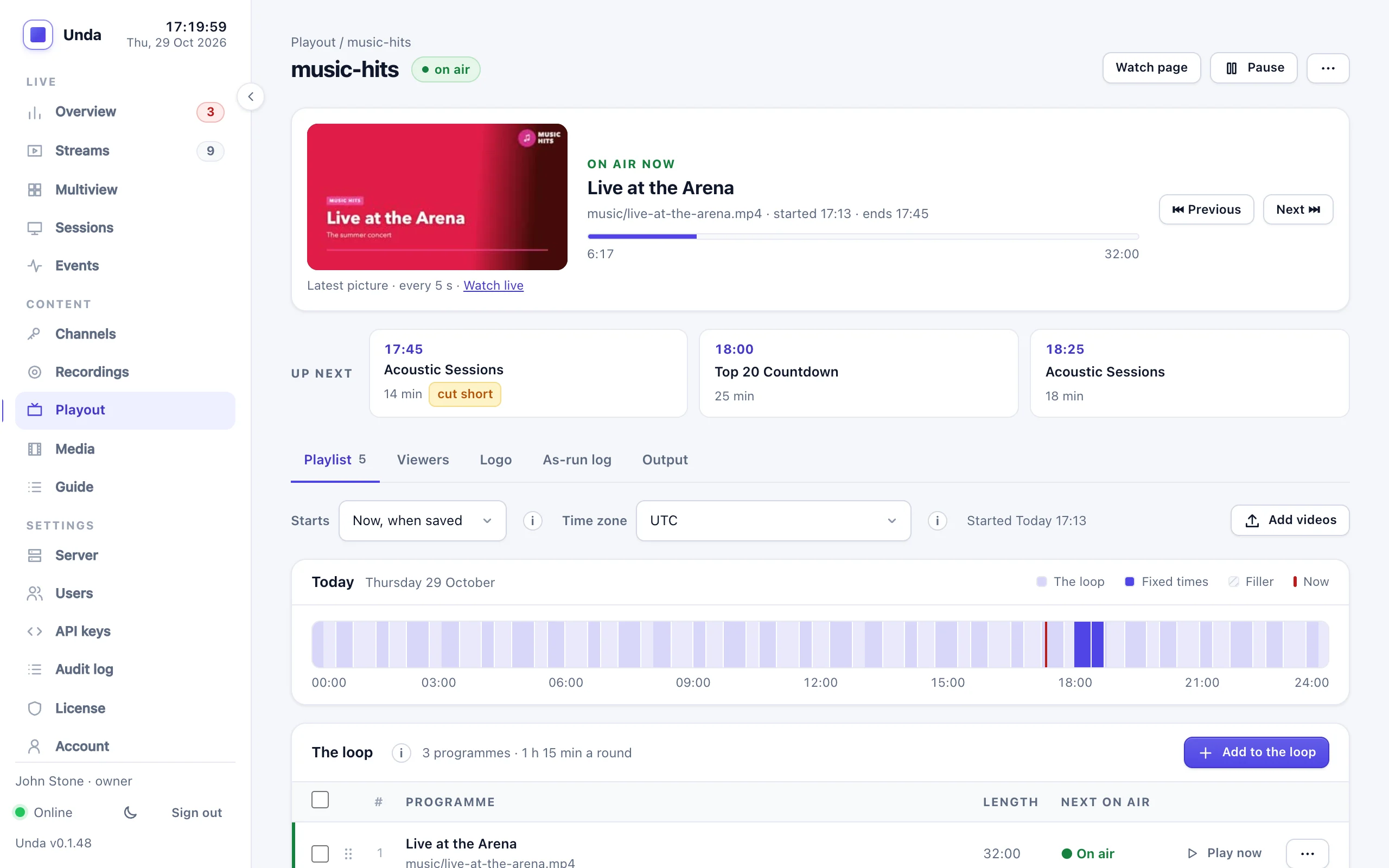
At the top is what is on air now: the channel's latest picture (every 5 seconds; Watch live plays it on the stream page), its title, how far it has got, and Previous and Next. Under it are the next three programmes, then four tabs:
- Playlist: the playlist editor (below).
- Logo: the channel's logo (see The channel's logo).
- As-run log: what went on air, newest first, a day at a time (pick the day), 50 entries a page with Older and Newer, and Download CSV for the day.
- Output: the picture, bitrate, encoder, underruns and live input, and the playlist file's state, with any item that can't play.
Switching tabs keeps changes you haven't saved in the playlist.
The playlist editor
A playlist plays as soon as you save it and goes round and round, so the channel is never empty: upload a few videos, add them, save. The editor shows it in two parts:
- The loop: items that play one after another, round and round. Add to the loop opens the list of the channel's videos (then the shared ones): tick as many as you want and add them in one go. They join the loop in the order you ticked them, and the list numbers them as you tick. To add a whole series, type part of its name in the search box, then Select all: ep 2 comes before ep 10.
- Fixed times: items that cut in at a set time, every day, on chosen days (pick the days) or on a date, whatever is playing. Each can have items that play right after it as one block, like the weather straight after the 19:00 news: open the fixed time and choose Then another item, which opens the same list. Add a fixed time adds one. They are listed by time.
When a fixed-time block ends, the loop carries on where it stopped: a film cut by the news continues after it. A fixed time also cuts a block that is still playing.
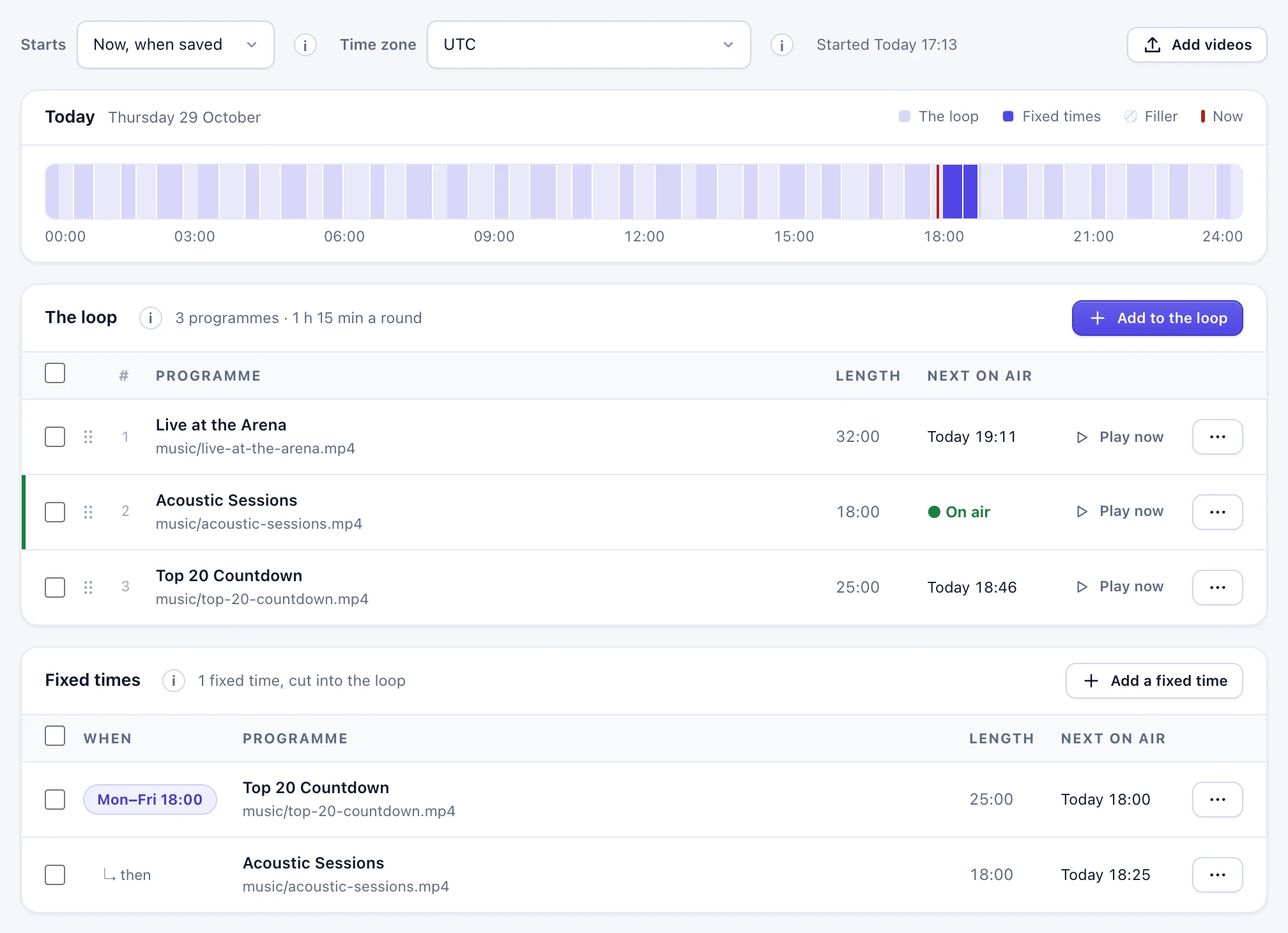
Each programme is a row: its title and file, its length, when it plays next (the one on air is marked), Play now in the loop, and a ⋯ menu to move it up or down, duplicate it or remove it.
- Several at once: tick rows (or the box at the top of the table to tick them all), then Move to top, Move to bottom or Remove. Removing a fixed time removes the items right after it too.
- Drag a row by its handle to move it within the loop, or within the items right after a fixed time. With the keyboard: focus the handle and use the up and down arrows. Fixed times stay in time order.
- Click a row to open its fields under it: the video, a title, when it plays (which moves it between the loop and the fixed times), where in the file it starts and stops (In and Out, like
00:01:30), and a description of up to 1,000 characters: TVs show it in their programme guide, and IPTV apps get it through XMLTV (see Programme guide). - Starts: Now, when saved, or At a date and time: until then the channel plays its filler, and the loop then starts from its first item.
- Today draws the day in the playlist's time zone: the loop, the fixed times, filler, and a line at now.
- When each item plays next (up to 8 days ahead) is worked out by the server as you edit, before you save, from the videos' lengths. Warnings show a video missing from Media, a time not chosen yet, or a fixed item cut short by the next fixed time.
- Saving never starts the playlist again. The programme on air keeps playing, wherever it now sits in the list, and the loop carries on from it in the new order. If you remove the programme on air, the one that followed it starts at once. To start from the top, use Play now on the first item.
- A channel made with an earlier version, whose schedule puts items at times of day or on dates, opens as the playlist that plays the same: each timed item becomes a fixed time and the items after it play right after it. Nothing changes on air; saving writes it the new way.
- Nothing changes on air until you save. While there are changes, a bar at the bottom of the window says what they are (programmes added, removed or changed, the order) with Save playlist and Discard; it goes away if you undo them by hand. The page asks before you leave with unsaved changes.
- If someone else saved the playlist after you opened it, saving is refused and the page offers to load their version, so nobody's work is silently overwritten.
Next, Previous and Play now
On the channel's page, Next puts the loop's next item on air now and Previous starts the item on air again (in its first few seconds: the item before). Play now on a loop item in the playlist puts that item on air. Viewers stay connected: the picture holds for a moment while the next video opens. The loop carries on from there, fixed times stay where they are, the programme guide follows, and the as-run log marks the item that was cut skipped. While a fixed-time item is on air the buttons are greyed out: it plays at its time, untouched. Anyone who can edit the channel can use them.
Pausing a channel
Pause at the top of the channel's page (or Pause channel in its ⋯ menu on the Playout page) takes it off air without deleting anything: its encoder stops, viewers see it offline, its programme guide (TV and XMLTV) is empty while it is paused, and it uses no CPU. Its playlist, settings and media are kept, and the playlist can still be edited.
Resume puts it back on air. A looping playlist carries on with the item it stopped in, from the same point, however long it was paused; fixed times play at their times as always, and a schedule of times of day follows the clock. A paused channel isn't a live stream, so it doesn't count toward your licence; if the licence is full when you resume, the page says so and the channel stays paused. Next, Previous and Play now wait until it is resumed.
It stays paused after the server restarts (a channel set in unda.yaml stays paused until the next restart). Anyone who can edit the channel can pause it: operators and above any channel, clients their own. Pauses and resumes are in the audit log and on the Events page, and the as-run log marks what was on air paused.
The channel's logo
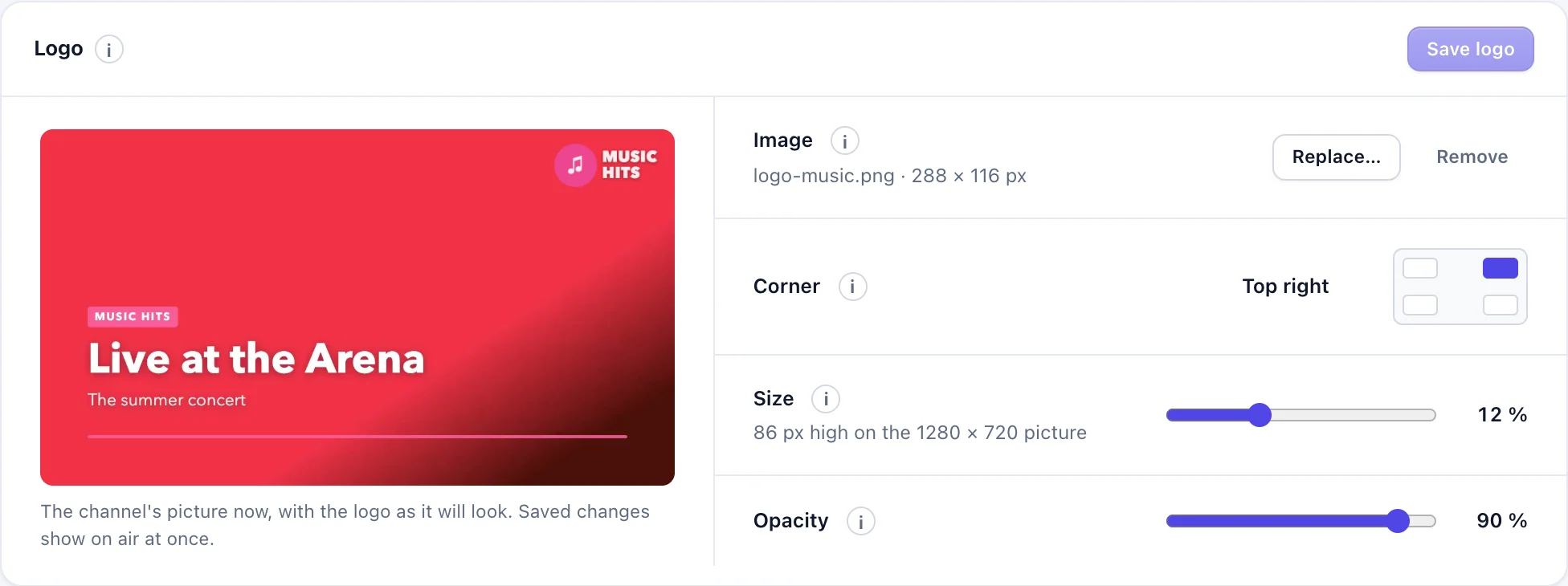
The Logo card on the channel's page puts your logo on the channel's picture, in a corner. Choose a PNG (best with a transparent background) or a JPEG of up to 5 MB, pick the corner, the size and the opacity, and click Save logo. Beside the settings you see the channel's picture as it is now, with the logo where it will go; it moves as you change the settings.
- It is on air from the next picture after you save: the channel doesn't restart and viewers see no pause. A new image, corner, size or opacity, and Remove, all work the same way.
- Size is the logo's height as a share of the picture's height, 3 to 30 % (10 % to start with). Transparent edges in the file are trimmed first, so the size is the logo's own. A very wide logo is held to 40 % of the picture's width.
- Corner: the logo keeps 4 % of the picture's height from the edges. Opacity: 10 to 100 % (85 % to start with).
- The server draws the logo into the picture, so every output carries it: the watch page, HLS and DASH, RTMP and SRT playback, restreams, recordings and bundles. It stays on while a live stream takes the channel over. Viewers can't turn it off.
- It costs almost nothing: under 1 % of a CPU core for a 1080p channel at 50 fps.
- The image is kept with the channel in the server's database (backups include it), not in Media. It can be set while the channel is paused. Deleting the channel deletes its logo.
- Anyone who can edit the channel can set it: operators and above any channel, clients their own. Changes are in the audit log.
The logo is for 24/7 channels, which the server encodes anyway. A live encoder's channel goes out as the encoder sends it, so add the logo in OBS or vMix there.
From a script, the same in one request:
curl -X PUT -H "Authorization: Bearer $UNDA_KEY" \
  -F image=@logo.png -F corner=top-right -F size=10 -F opacity=85 \
  https://tv.example.com/api/v1/playout/channels/tv1/logo
Channels in unda.yaml
A channel can also be set in unda.yaml (the way before the dashboard could make channels); it is marked from unda.yaml on the Playout page, and its settings are changed there. Its playlist can be edited in the dashboard when the server may write the schedule file. A server installed with the installer can't write /etc/unda, so for such a channel the dashboard shows the playlist read-only: make the channel in the dashboard instead.
playout:
  channels:
    - name: tv1                          # the channel's stream name
      schedule: /etc/unda/schedules/tv1.yaml
      live: studio                       # optional: this stream takes over while live
      filler: image                      # black (default), image, or video (looped)
      filler_file: /etc/unda/slate.png
Optional settings: width and height (default 1280×720, up to 1920×1080), fps (25, 30, 50 or 60; default 30), video_kbps (default 3000), audio_kbps (default 128), preset (libx264, default veryfast). filler: image with filler_file (a still picture) is set here only.
The Media page
Media lists the video files with their folder, length, picture size, frame rate, sound and which channels use them. Operators see every file; a client sees the shared files and their own channels' files. Files copied in by hand appear by themselves.
- Uploading: drop files on the page or click to choose them. A file goes up in 8 MB pieces. If the connection drops, the server restarts or the page is reloaded, choose the same file again and it carries on where it stopped. An unfinished upload is removed after 24 hours without progress.
- Checks: each finished upload is checked before it joins the library; a file that isn't playable video is refused with the reason. Names are letters, digits,
.,_and-(the page turns spaces and other characters into-). An existing name is never overwritten: delete the old file first. - Space: a file may be up to 5 GB, an upload must leave 5 GB of the disk free, and
playout.media_max_gbcaps the whole folder if you set it. - Deleting: a file on air, or about to be, can't be deleted. A file still named in a schedule can; the channel then skips it and shows a warning.
- Behind a reverse proxy: allow request bodies of 16 MB (nginx:
client_max_body_size 16m;). Caddy needs no change.
The Playout page
Playout lists every channel in a table: its latest picture, its name with its picture size and bitrate (or what needs attention), whether it is on air, what is on air and how far in, and what plays next. Click a channel's name or Open for its page; a paused channel has Resume on its row, and the ⋯ menu has its stream page, Settings, Pause channel and Delete channel.
Above the table, filter by name, show only the channels on air, paused or needing attention, and sort by name, needs attention first, or ending soonest (the programme on air nearest its end).
The schedule file
The playlist editor writes this file for you; you only need it for a channel set in unda.yaml, or to generate schedules with your own tools. A dashboard channel's file is <data folder>/playout/<name>.yaml (edits made to it by hand are picked up within 5 seconds, like any schedule file).
YAML or JSON. A playlist (repeat: loop) plays its items round and round; an item with at cuts in at that time instead, and items with after: true below it play right after it as one block. The loop then carries on where it stopped.
timezone: Europe/Paris       # default: the server's time zone
repeat: loop
items:
  - media: film.mp4          # in the loop
    title: The River
    description: A family's journey down the river.   # optional: the programme guide's text
    in: "00:00:30"           # skip the first 30 seconds
    out: "01:35:00"          # stop here
  - media: series-ep1.mp4    # in the loop
  - media: news.mp4
    at: "19:00"              # every day at 19:00
  - media: weather.mp4
    after: true              # right after the news
  - media: service.mp4
    at: "10:00"
    days: [sun]              # only on Sundays (mon, tue, wed, thu, fri, sat, sun)
  - media: final.mp4
    at: "2026-10-25 15:00"   # once, on that date
start_at: "2026-10-26 06:00" starts the playlist then (filler before). The server writes since and offset when you save or skip: where the loop was at that moment, so a restart rejoins it in place. Without them the loop is anchored to a fixed moment.
Schedules written for earlier versions still play as they did: without repeat, an item with a start ("2026-10-01 06:00") begins exactly then and items without one follow it; with repeat: daily the starts are times of day ("06:00") and the day repeats.
The server re-reads the file within a few seconds of it changing: edit it and save, no restart. A file with a mistake is refused with the reason (on the dashboard, in the events and in the log) and the previous schedule keeps playing. A file named in the schedule that isn't in the media folder is reported and skipped. items: [] is an empty schedule: the filler plays all the time.
Programme guide
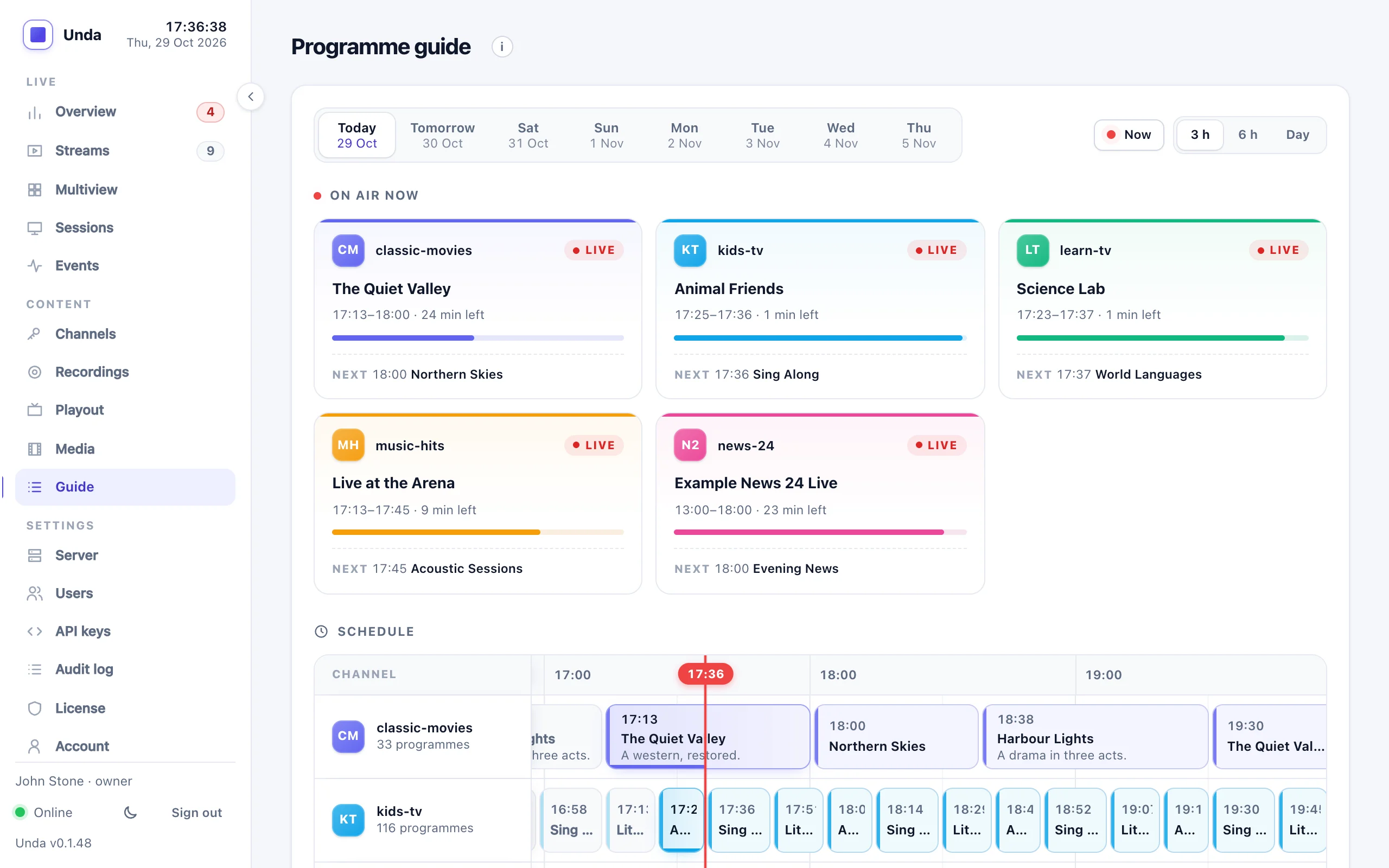
Each channel's playlist is also its programme guide: every item with its title (or file name) and description, laid out over the coming days. A live takeover isn't in it, because nobody knows in advance when one will happen. Short items (under a minute, such as idents and jingles) are counted as part of the programme before them.
- The Guide page (Content → Guide) shows every channel's programmes for today and the next 7 days, live channels' typed-in guides too (see below). Click a programme to see its description. Clients see their own channels.
- TVs and set-top boxes get the guide when the channel is in a multi-channel bundle: now and next, and the coming 8 days.
- IPTV apps and middleware read it as XMLTV, from the link shown on the Guide page. Most apps can't sign in, so the link itself is the key: keep it private. In your M3U playlist, set each channel's
tvg-idto the channel's name as Unda shows it. A client's link lists only their channels; an operator's lists them all. Times are in UTC (+0000), which apps convert. The page shows the link hidden (Show reveals it; Copy works either way). Give apps thehttps://address: over plainhttp://the link crosses the network unencrypted. A link stops working when its account is disabled or its API key revoked, and narrows at once when its account loses a role. - Server → Guide (administrators) switches XMLTV links off and on, and Replace all links makes new ones when a link got out: every link given out before stops working, and apps need the new one.
Live channels: a typed-in guide
A channel fed by an encoder (OBS, vMix, a hardware encoder) has no playlist to work its guide out from, so you type it in: open the channel's page (Streams → the channel) and its EPG tab. The channel's owner and operators can change it.
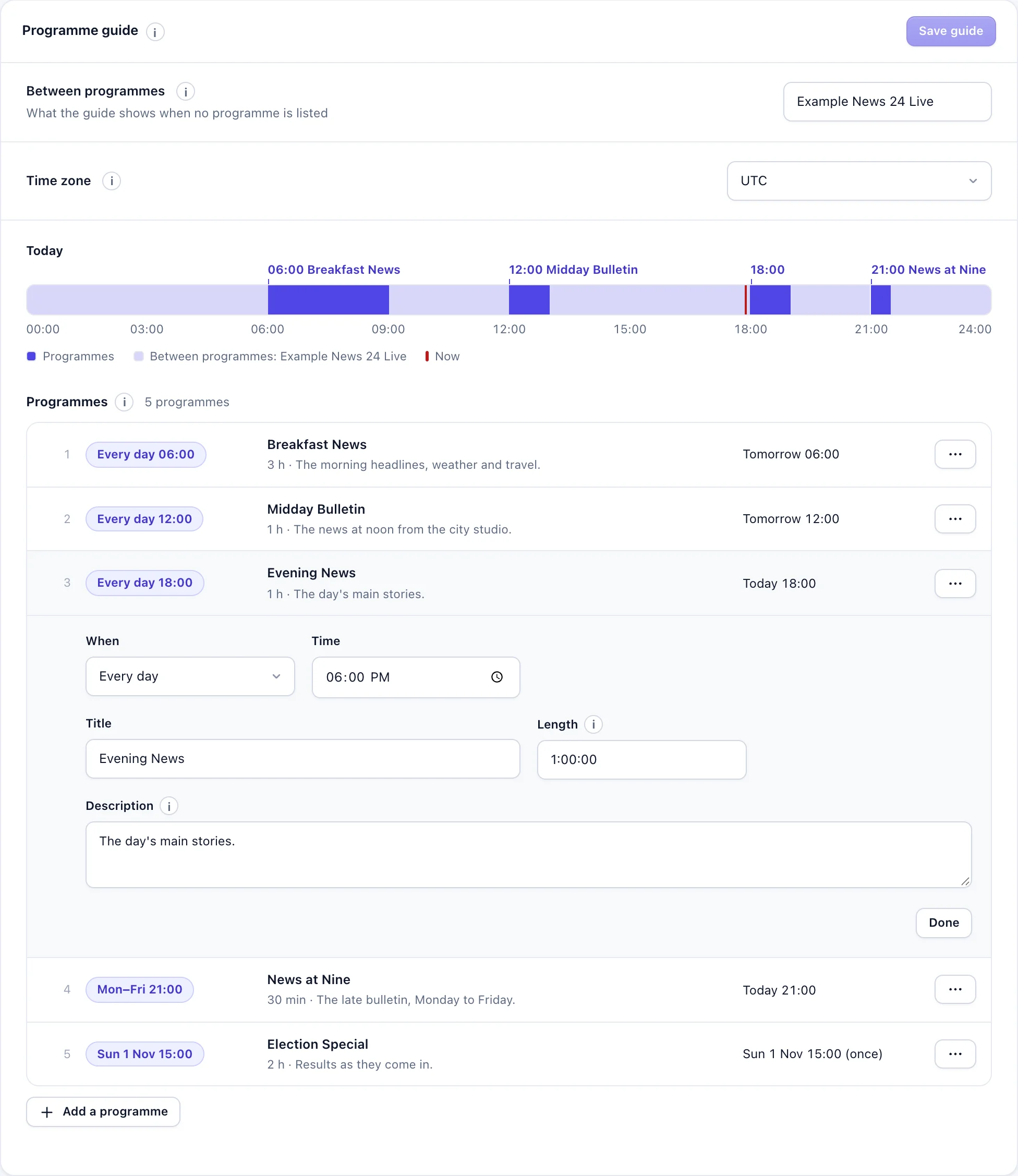
- Each programme has a time, a title, a length and, if you like, a description. The time is every day, on chosen days (Monday to Friday, say) or on a date (a one-off, such as a match).
- Each programme runs its length, or until the next one starts. A programme on a date or on chosen days comes before an every-day one: an every-day programme it overlaps is cut around it, so a Saturday match at 20:00 replaces the every-day news at 20:00 that Saturday only.
- Between programmes the guide shows a title you choose, such as "News 24 Live" (optional). Without one, the time between programmes is left empty in the guide.
- The time zone is where the times are; a new guide starts in your browser's.
Programmes are listed by time, one line each; click one to change it, and its ⋯ menu duplicates or removes it. The tab shows today as a strip and, for each programme, when it is next on air (or that it is on now), as you type; saving puts it on the Guide page, in the XMLTV link and in every bundle carrying the channel, 8 days ahead. The guide says what is planned: it doesn't follow what the encoder actually sends, so a show that starts late is still listed at its time. Saving a guide with no programmes and nothing between them takes the channel out of the guide. Deleting the channel deletes its guide.
What viewers see
- Between items, before the first one and after the last: the filler.
- Live takeover: when the
livestream starts, the channel switches to it within a few seconds (about 3 s measured); when it stops, the channel goes back to whatever the schedule has at that moment, joining the item where it would be by then. - Every item is scaled to the channel's picture (letterboxed, never stretched), at the channel's frame rate, with its sound at 48 kHz stereo. Viewers' players never restart between items.
- A file that can't be played shows the filler until the next item.
The as-run log
Everything that goes on air is recorded: each item, filler and live takeover, with its scheduled time, when it really started and ended, where in the file it started, and why it ended (completed, cut by the next fixed time, live, error, stopped, skipped by Next, Previous or Play now, schedule when the playlist changed). It is kept for 90 days (playout.asrun_retention_days).
curl -H "Authorization: Bearer $KEY" "https://tv.example.com/api/v1/playout/channels/tv1/asrun?format=csv" > asrun.csvAlerts
The dashboard warns when a channel is off air, when its schedule file was not loaded, when scheduled files can't play, when a one-off schedule runs out within a day, and when the server can't keep up (pictures repeated).
Server capacity
Each channel re-encodes everything it plays, all the time: about half to two thirds of one CPU core at 720p30, and more at 1080p. A 4-core server runs two or three 720p channels next to its other work.
A channel counts as a live stream for the license, and needs the playout feature in it.