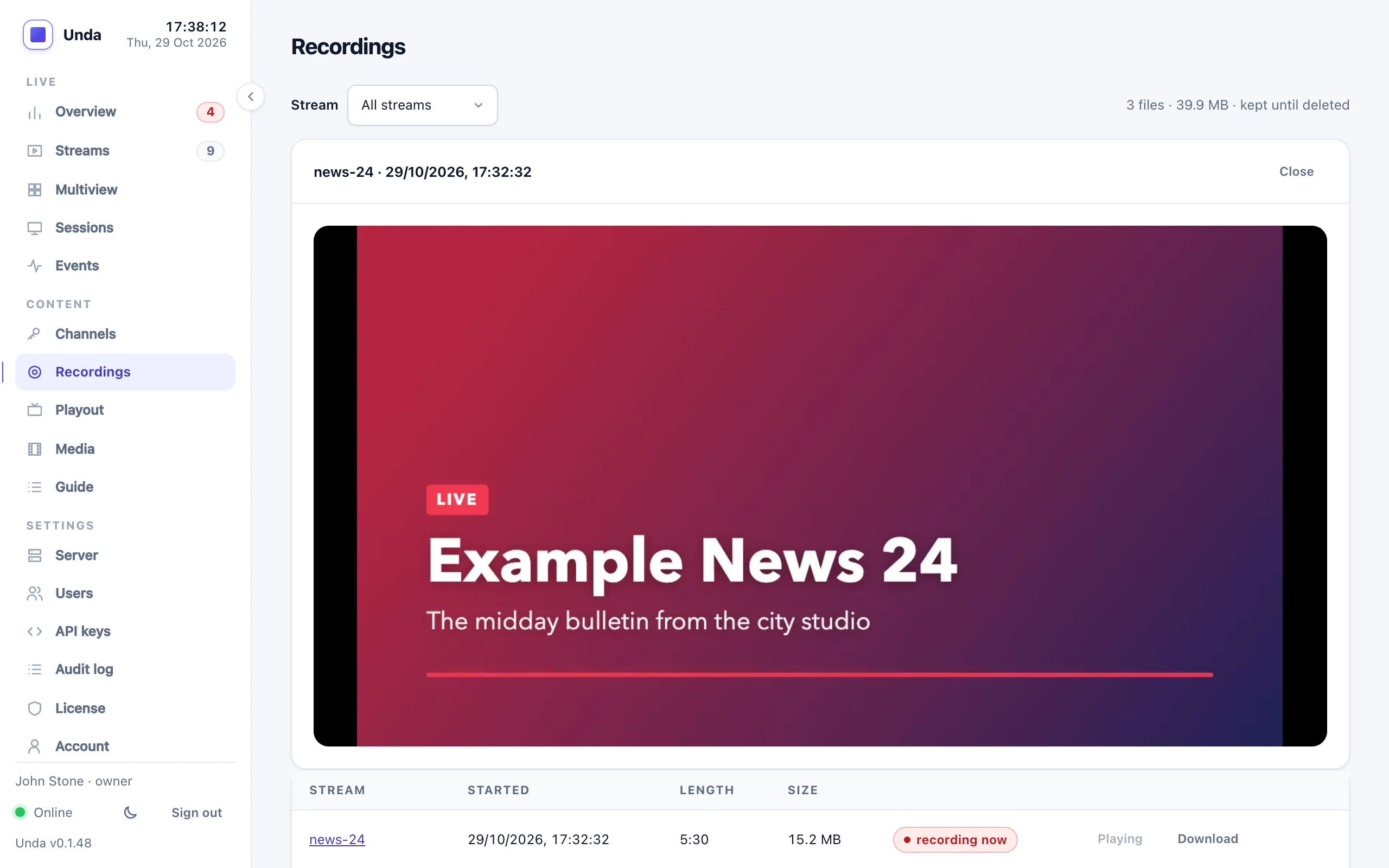
Recording
Open a live stream in the dashboard and press Record; Stop recording ends it. Recording never affects the live stream: a full disk stops the recording, not the broadcast.
Files are written to the server's recordings folder (/var/lib/unda/recordings with the installer):
recordings/main-show/2026-09-25_19-30-00.ts- Format: MPEG-TS (
.ts). It plays in VLC and most editors, even while it is still being written and even after a power cut or crash (you lose at most the last couple of seconds). Convert to MP4 without re-encoding if you need to:ffmpeg -i in.ts -c copy out.mp4. - Splitting: a new file starts about every 60 minutes, at a keyframe, so every file plays on its own. Change it with
record.split_duration_minutes. - Clean-up:
record.retention_days: 30deletes recordings older than 30 days. It is off by default: nothing is deleted unless you ask. - The dashboard warns when the recordings disk is 85% full or has under 5 GB free, and again at 95% or under 2 GB. With under 2 GB free a recording won't start, and under 1 GB running recordings stop, their files closed cleanly, so a full disk can't cut a file off or starve live viewers.
Recording can also be controlled from scripts:
bash
curl -X POST -H "Authorization: Bearer $KEY" -d '{"action":"start"}' https://tv.example.com/api/v1/streams/main-show/record
curl -X POST -H "Authorization: Bearer $KEY" -d '{"action":"stop"}'  https://tv.example.com/api/v1/streams/main-show/record
Watching, downloading and deleting recordings
The Recordings page lists every recorded file, newest first: which stream, when it started, how long it is and its size. You can filter by stream.
- Play watches it in the page, with seeking.
- Download saves the file (MPEG-TS,
.ts: VLC and most editors open it). - Delete removes it. The file being recorded right now cannot be deleted; stop the recording first.