A tour of the dashboard
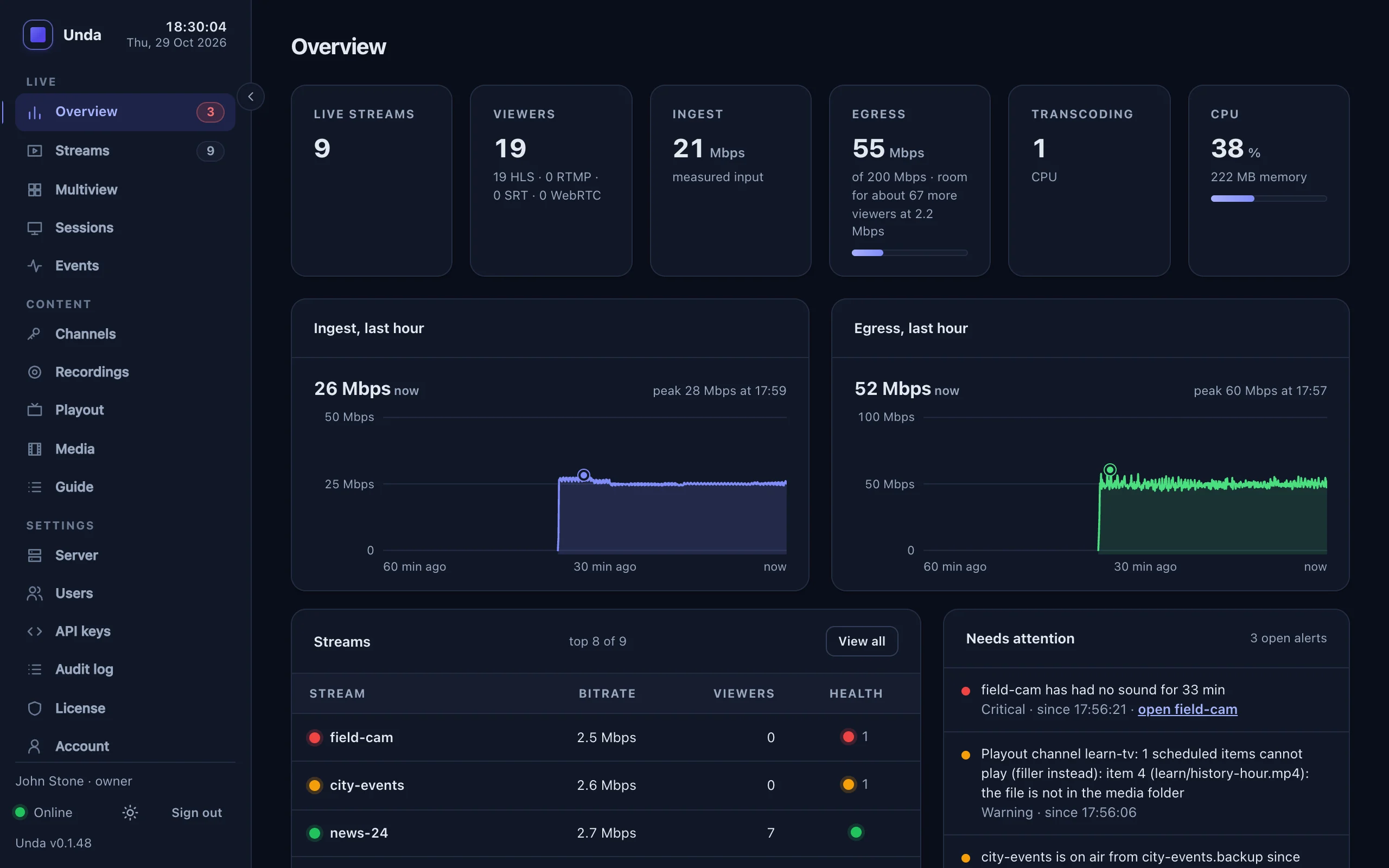
Everything in Unda is run from the dashboard at https://your-server/dashboard: streams, viewers, recordings, 24/7 channels, people and settings. These pictures come from a demo server with a few live streams, a 24/7 channel and simulated viewers. Select a picture to see it full size.
People see only what their role allows. A streamer sees their own channels and streams; operators and admins see more (see Accounts and channels).
Explanations sit behind a small i beside a setting or title: point at it, tap it, or Tab to it and press Enter. What you need to see at once (status, warnings, errors) stays on the page.
Overview
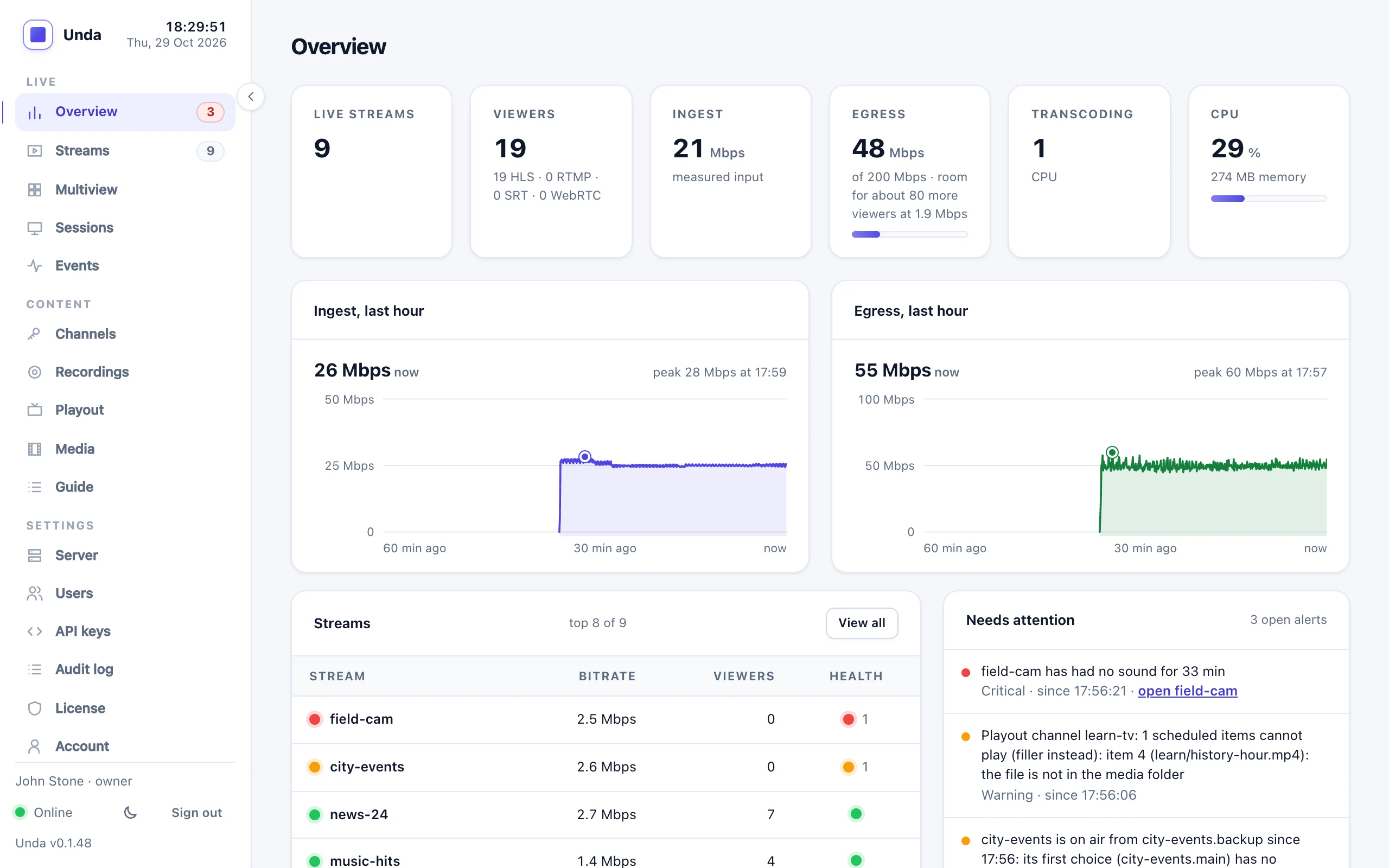
The first page after signing in. Live streams, viewers, incoming and outgoing bandwidth (with a bandwidth cap set, how many more viewers the server has room for), and charts of the last hour. Needs attention lists open alerts, worst first: here, a camera whose keyframes are too far apart. Clear calms one you have seen, for everyone, until it gets worse or happens again (Clearing an alert). The dot at the bottom of the sidebar shows the live connection to the server; if it drops, the page greys out and says so.
Streams
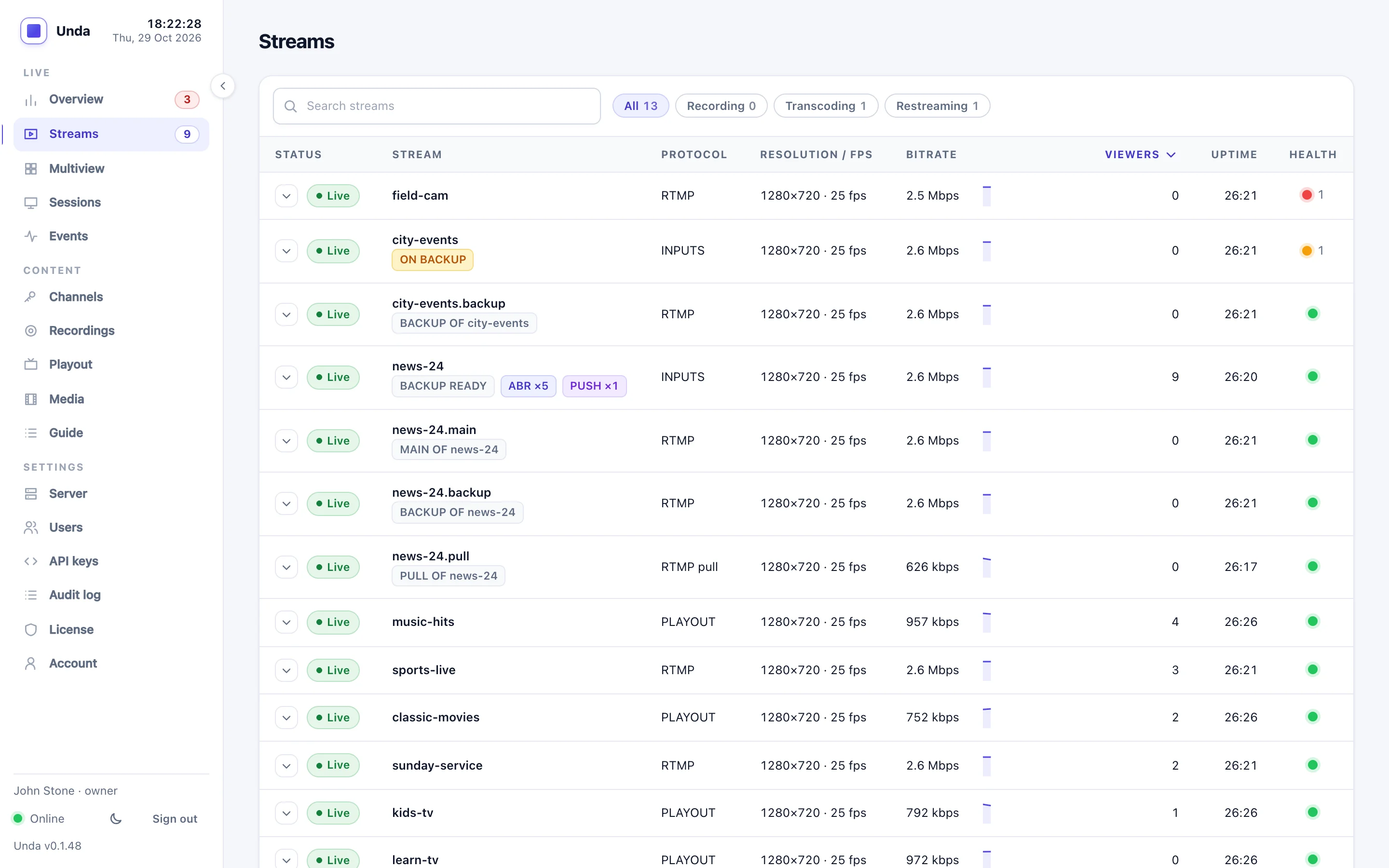
Every live stream with its protocol, picture size, measured frame rate, bitrate, viewers and health. Tags show what is happening to each one: recording, adaptive bitrate, restreaming, backup sources. Streams with a problem always sort to the top. Open a row to see who is pulling the stream and whether any of them is falling behind.
A stream's page
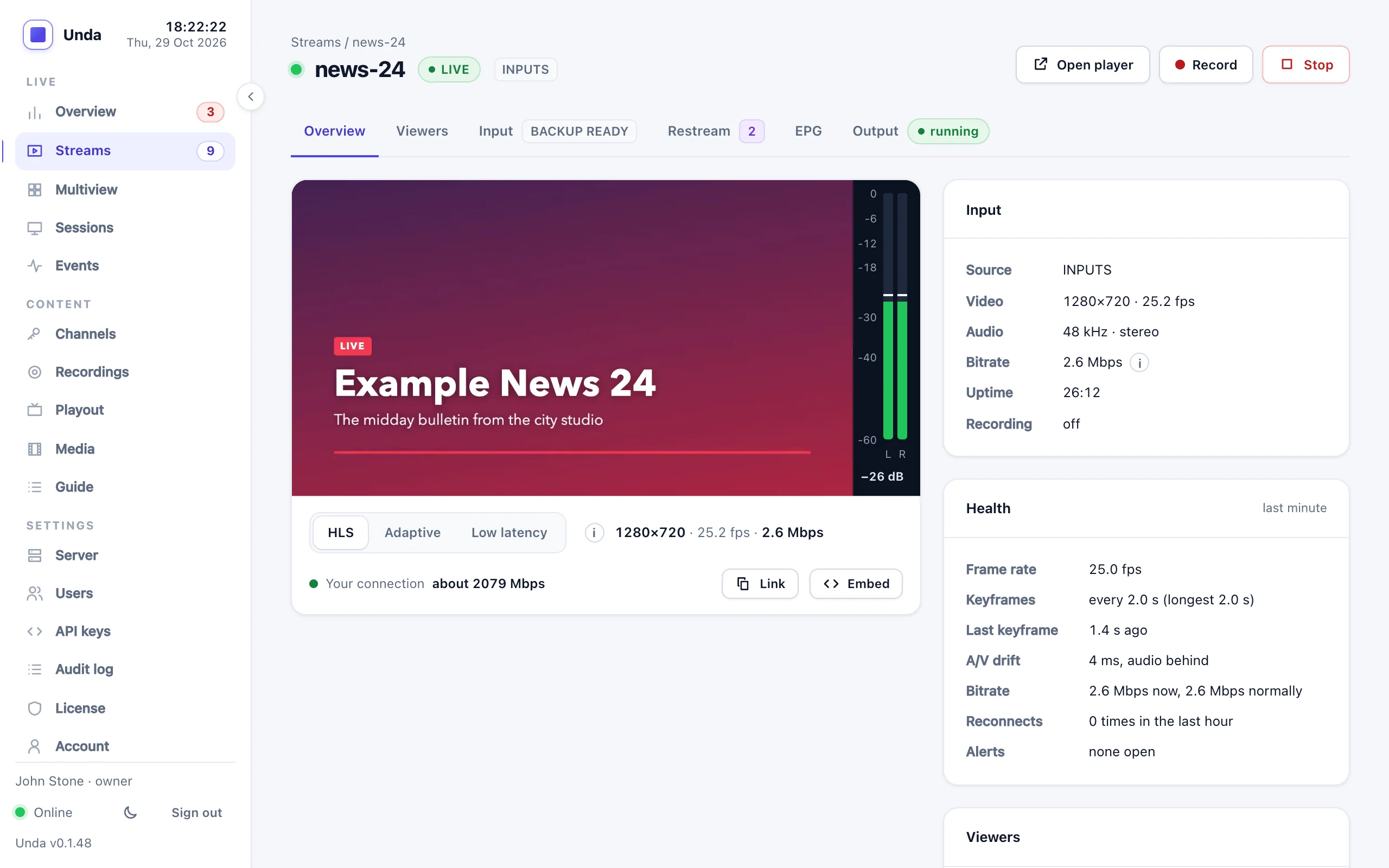
A live preview with a sound meter, what the encoder is sending, and its health: frame rate, keyframe interval, audio/video drift, bitrate against its usual level and reconnects. From here you record, stop the stream, or open the player.
Under the preview, choose how it plays: HLS (the stream as it arrives, a few seconds behind live), Adaptive (the qualities of a transcoded stream) or Low latency (WebRTC, under a second behind, when the server has it). This browser remembers the choice. The preview starts muted and plays only while the browser tab is in front. The meter beside the picture shows the sound reaching the server, also while the preview is muted; with HLS it moves a few seconds ahead of the picture, with Low latency in step with it. On a stream that keeps a rewind window, a bar over the picture lets you go back in it, and Go live brings you back.
Beside the choice are the stream's size, frame rate and bitrate, and under it how fast your connection loads the preview. Link copies the watch page's address and Embed the code that puts the watch page in your own web page. When your connection is too slow for the stream, a note under the preview says so: Show a picture instead shows its latest picture every few seconds rather than a video that keeps stopping (and holds up the rest of the page), and this browser remembers it until you click Play video; Keep playing leaves the video on.
The tabs hold the stream's other settings:
- Input: the channel's inputs in order: its live encoder (and a backup encoder), a pull stream and a playlist; the first one with pictures is on air.
- Restream: destinations such as YouTube and Facebook.
- EPG: a live channel's programme guide.
- Output: every address to watch it by, who can watch (signed links), how far back viewers can go (rewind) and adaptive bitrate.
Multiview
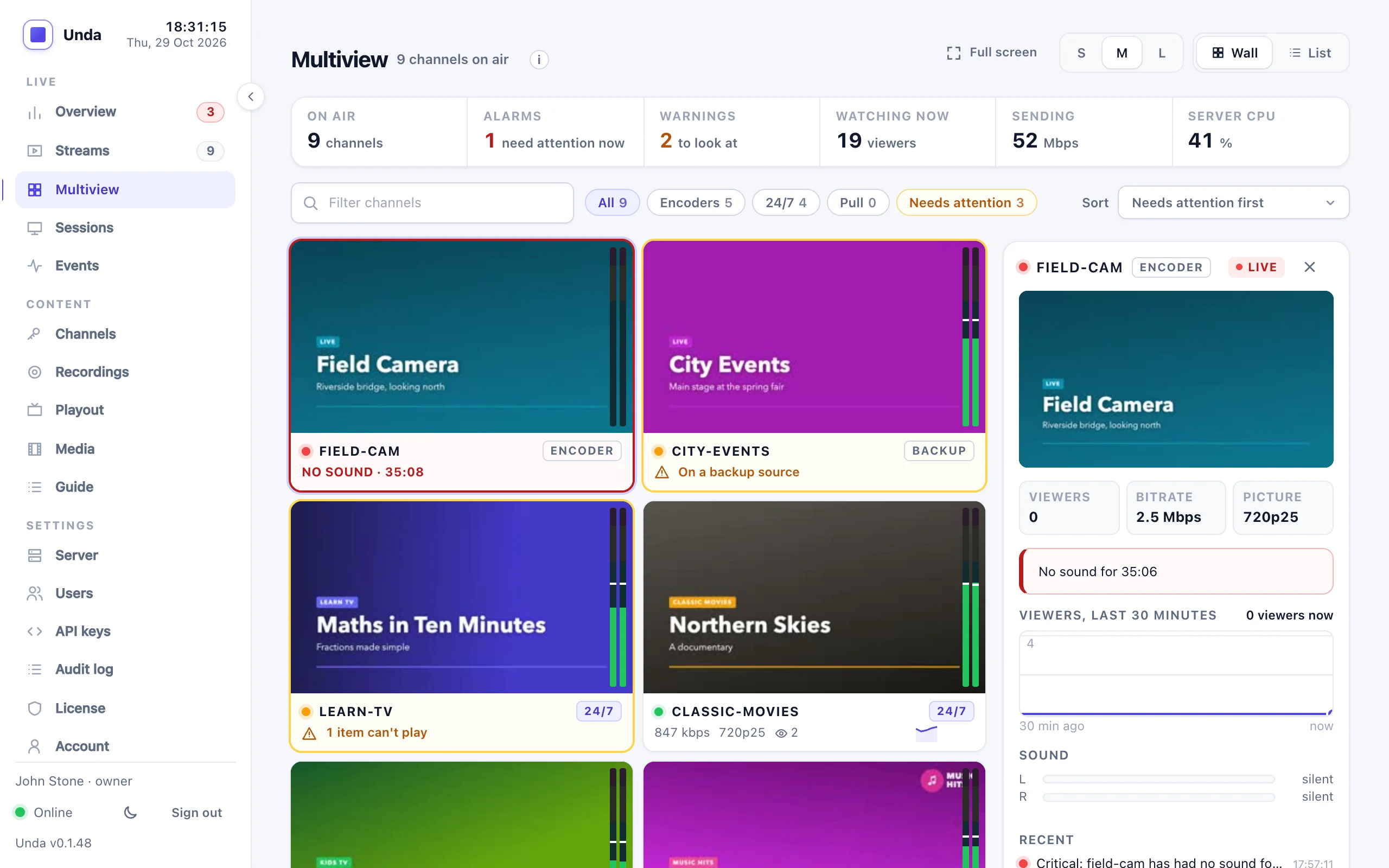
Every channel on air at a glance. A bar at the top sums them up: how many are on air, how many have an alarm or a warning, how many people are watching, and (for staff) what the server is sending and its CPU. Choose Wall or List at the top right; this browser remembers the choice, the sort and the tile size.
Wall. A picture of every channel, refreshed every few seconds. The pictures are stills, so the wall costs the server little, however many channels there are. Point at a picture to see how old it is. Under each picture is the channel's name, a tag for what feeds it (ENCODER, 24/7 or PULL), and one line with its bitrate, picture size, viewers and a small graph of its bitrate, or, when it needs attention, what is wrong. Click a picture to see the channel's details on the right: a larger picture, its figures, viewers over the last 30 minutes, its sound, what a 24/7 channel is playing, its recent events, and buttons to its stream page, its watch page and its viewer figures. On screens narrower than about 1100 pixels there is no room for the details, and a picture opens the channel's stream page instead. Full screen fills the screen with Multiview, for a wall monitor.
An alert you have seen can be cleared with the ✓ beside its tile's line (or Clear in the list and the details): the tile calms down for everyone, with a small grey 1 cleared mark, until the alert gets worse or happens again (Clearing an alert).
List. One line per channel, grouped into encoders, 24/7 channels and pulled streams: its picture, status, bitrate and graph, sound, viewers, what is on air (or how long it has been up), what needs attention, and Open.
Colours. A red frame means the channel's viewers are losing it: nothing coming in, no sound, a 24/7 channel off air or out of pictures, a pull that has been off the air for minutes, or heavy packet loss. Everything else that needs a look is orange: a failing restream, keyframes too far apart, an encoder reconnecting, a low bitrate. A channel on a backup source is never red: viewers still get it, so it is orange and says it is on its backup, even when the backup is silent.
Above the wall or list, type in Filter channels to find one by name, show only Encoders, 24/7 channels, Pull streams or those that Need attention, and sort: needs attention first, by name (either way), most or fewest viewers, highest or lowest bitrate, longest or shortest on air, by type (encoders, then 24/7, then pull), largest picture, or quietest sound first. In the list, click a column heading (Channel, Bitrate, Sound, Viewers, On air, Problem) to sort by it, and again to turn the order round.
A channel with inputs has one tile: what its viewers see, its tag saying what is on air (ENCODER, BACKUP, PULL, PLAYLIST or SLATE). Pictures of its inputs are on the channel's Input tab. The Overview and the Streams count in the menu count such a channel once, as the licence does.
Each picture has two sound meters at its right edge, for the left and right channel: green, yellow above -18 dBFS, red above -6 dBFS, with a line marking the last peak (in the list they lie across the Sound column). A channel that has been silent for 10 seconds shows NO SOUND with how long; a stream that carries no sound at all shows No sound track, in orange. The same alarm appears in Needs attention and in Events, whether or not anyone has Multiview open (see No sound).
Viewers and events
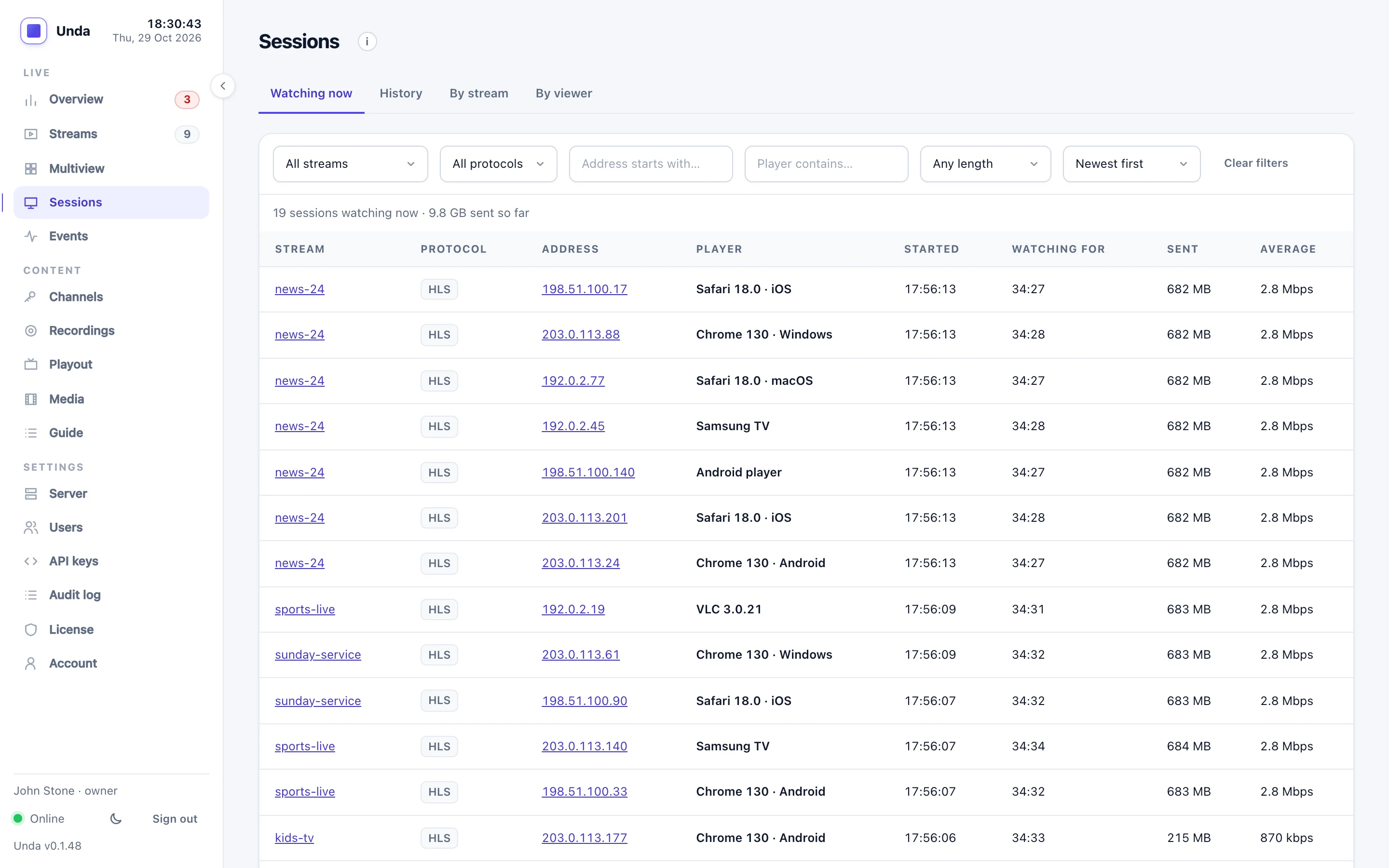
Sessions lists every player watching now, over HLS, DASH, RTMP or SRT, with its address, player, how long it has watched and how much it received. The other tabs keep the history (downloadable as CSV) and add it up by stream and by viewer.
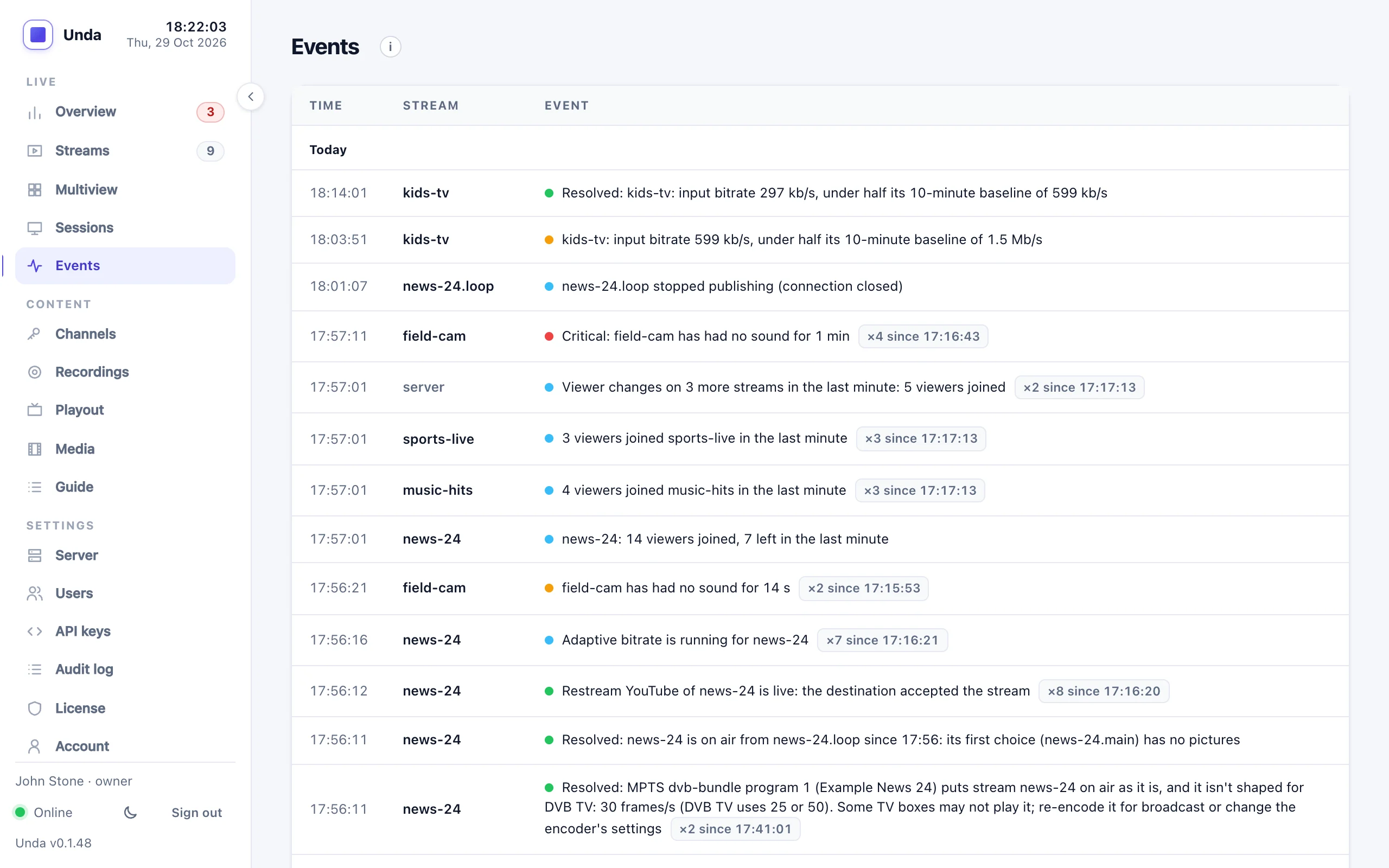
Events is what happened, newest first: streams starting and stopping, reconnects, switches to a backup encoder, recordings, restream destinations connecting or failing, alerts opening and resolving. A line that repeats is shown once with a count.
Channels and people
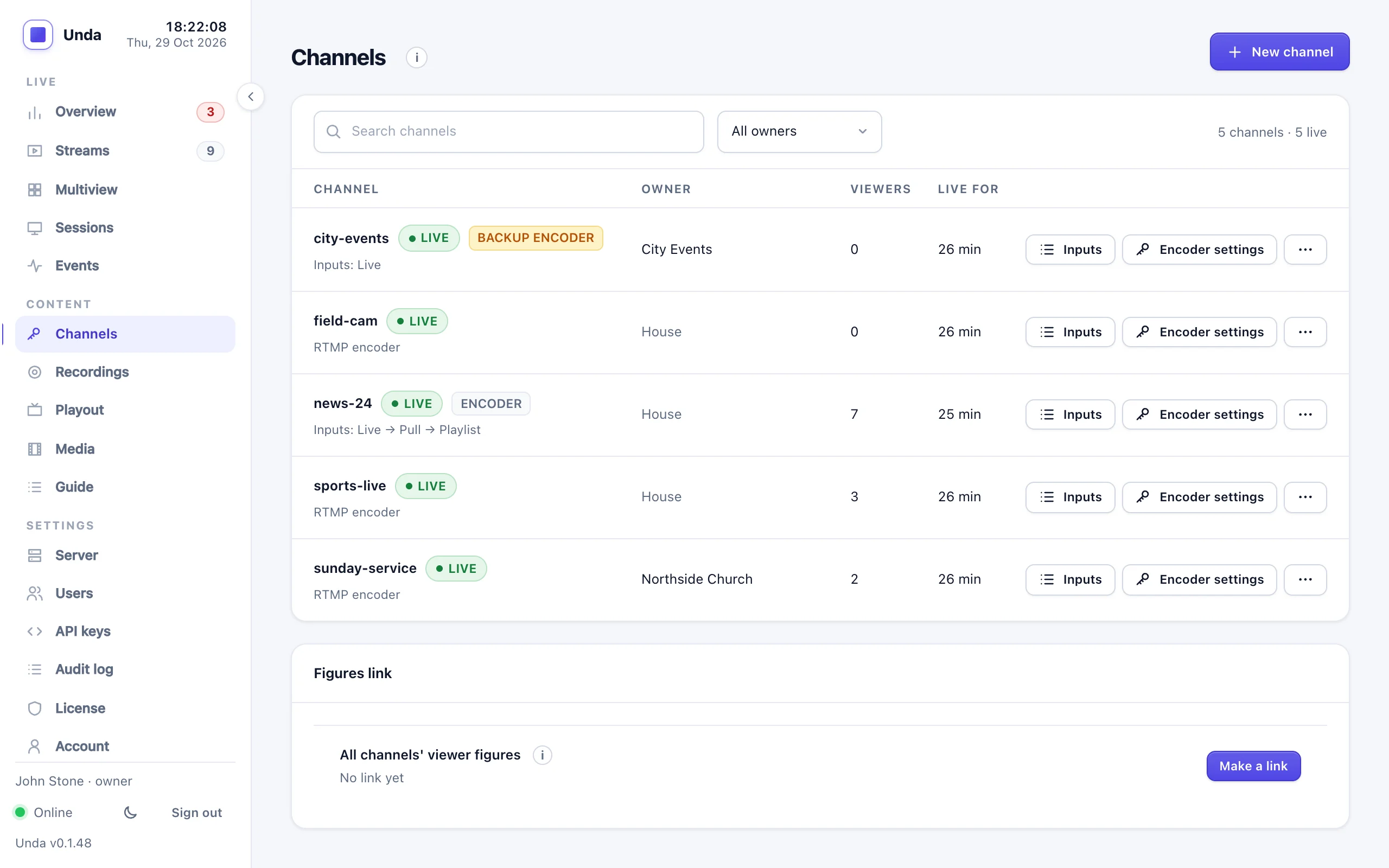
A channel is a public name for viewers and a secret key for the encoder. Each row shows whether it is live (and, for a channel with inputs, which one is on air), its owner, viewers and time on air; an offline channel shows when it was last live. Search and the owner filter help when there are many. A channel streaming with settings that will make viewers buffer gets a warning with the fix.
- Inputs sets what the channel plays: its encoder, a pull stream or a playlist.
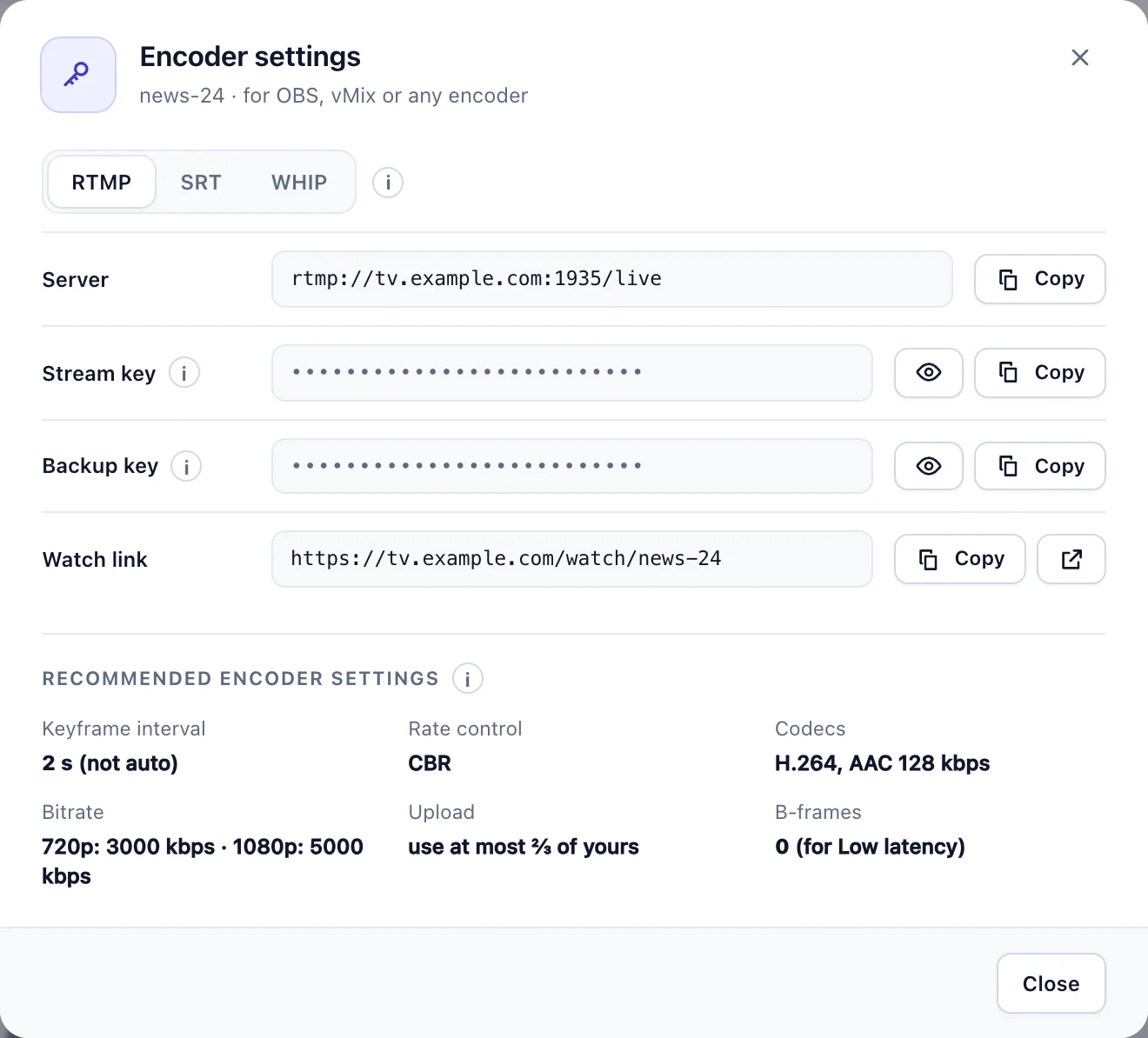
- Encoder settings has what to put in OBS or vMix: the server address and the stream key (RTMP, or SRT and WHIP when the server has them), the backup key when backup sources are on, the watch link and the recommended encoder settings. Keys stay hidden until you choose the eye; Copy copies a key without showing it, which is safe while you share your screen.
- The ⋯ menu holds the rest: Copy stream key, New stream key, New backup key, Change owner (admins), Pause channel and Delete channel.
- Pause channel takes a channel off air without deleting it: a live encoder is disconnected, and its stream key (and backup key) is refused until you choose Resume on its row or its page. Its pull stream and playlist stop too. Its settings, keys, watch links, guide and recordings are kept, it stays paused after a restart, and a paused channel doesn't count toward your licence.
New channel (top right) asks for the name, shows the watch link as you type it, and opens the new channel's encoder settings.
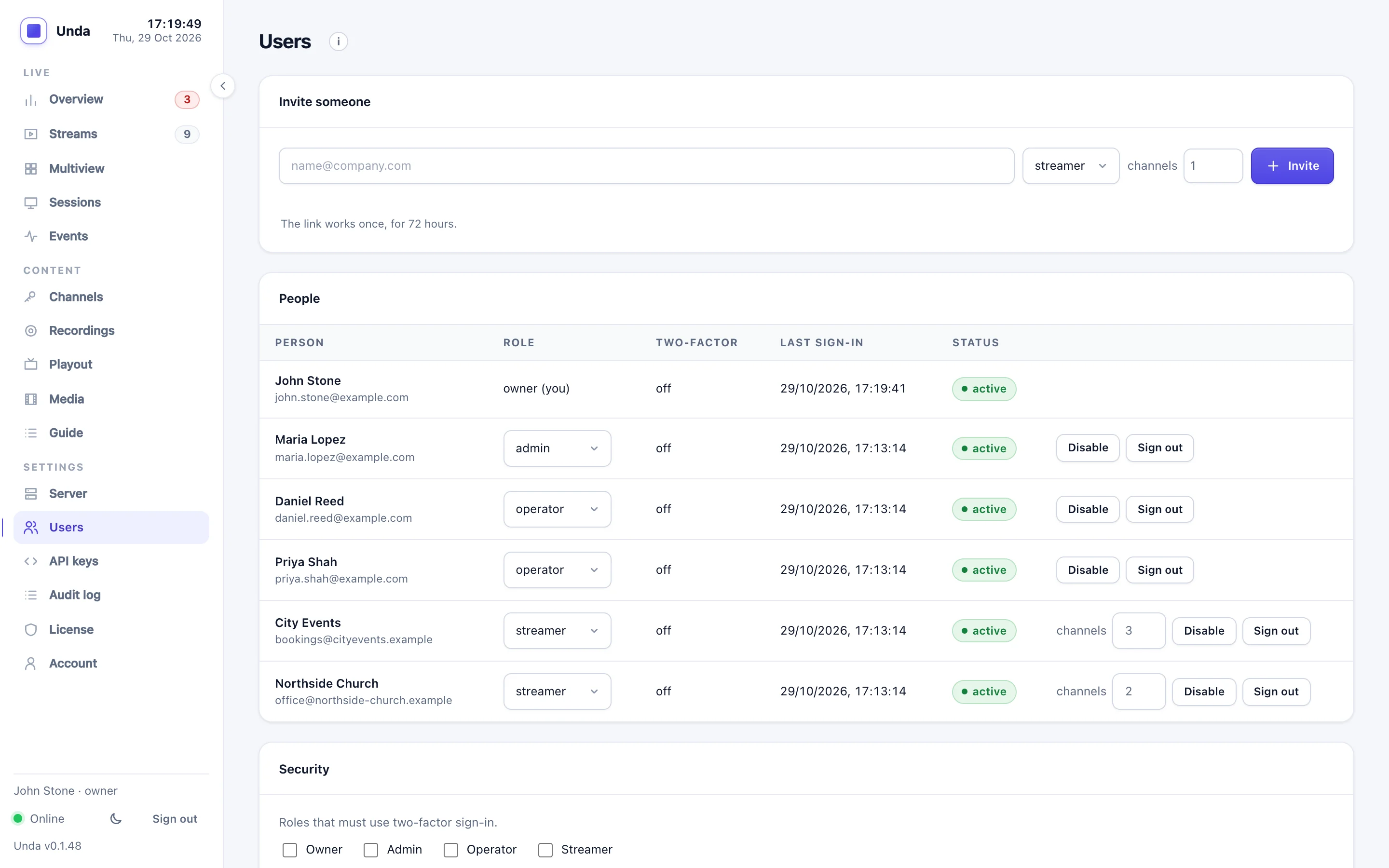
People join by invitation, with a role: owner, admin, operator or streamer. Two-factor sign-in can be required per role. Server → API keys and the Audit log sit next to it in the sidebar.
Recordings
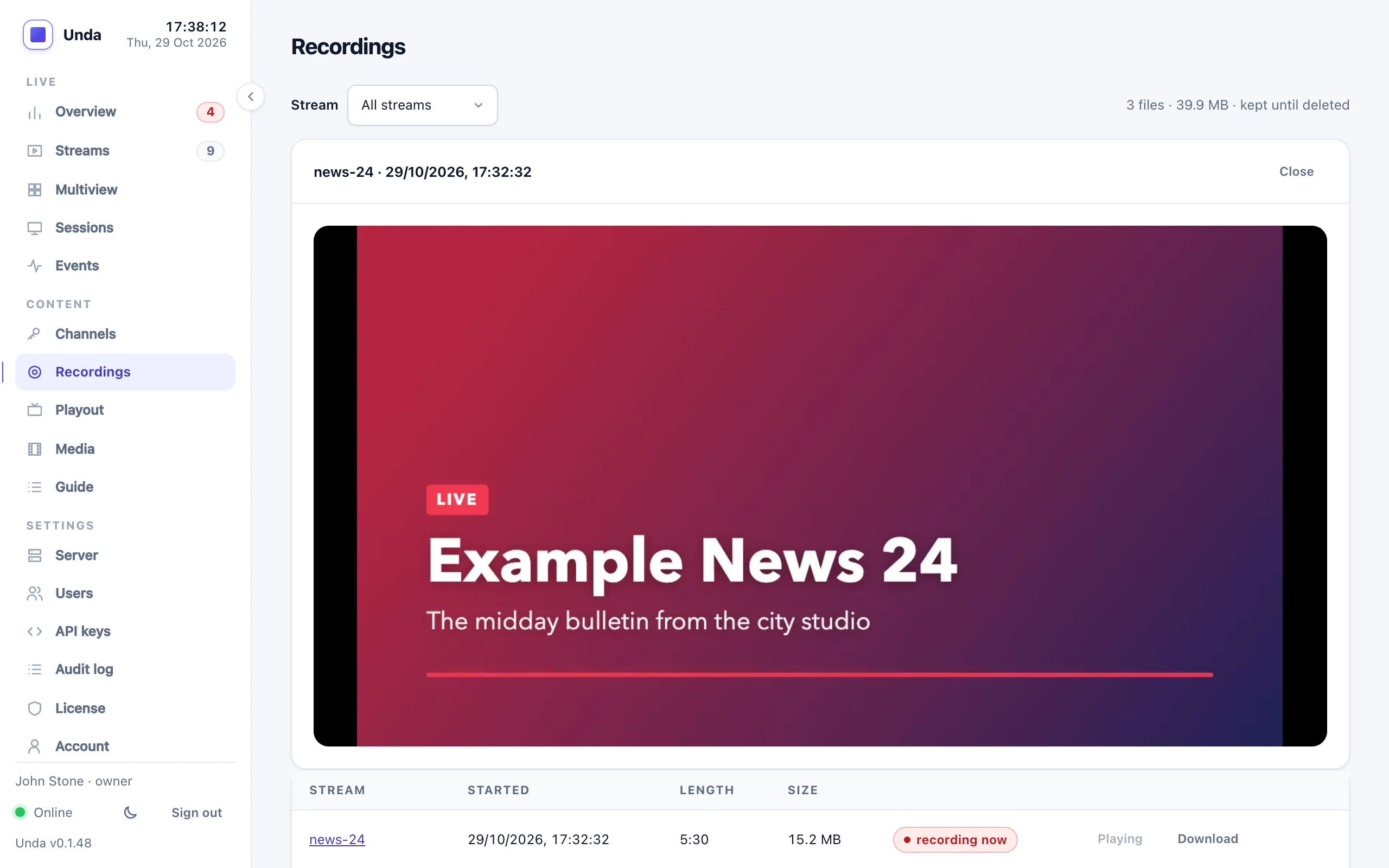
Every recording with its length and size. Play it in the browser, download it, or delete it. See Recording.
24/7 channels
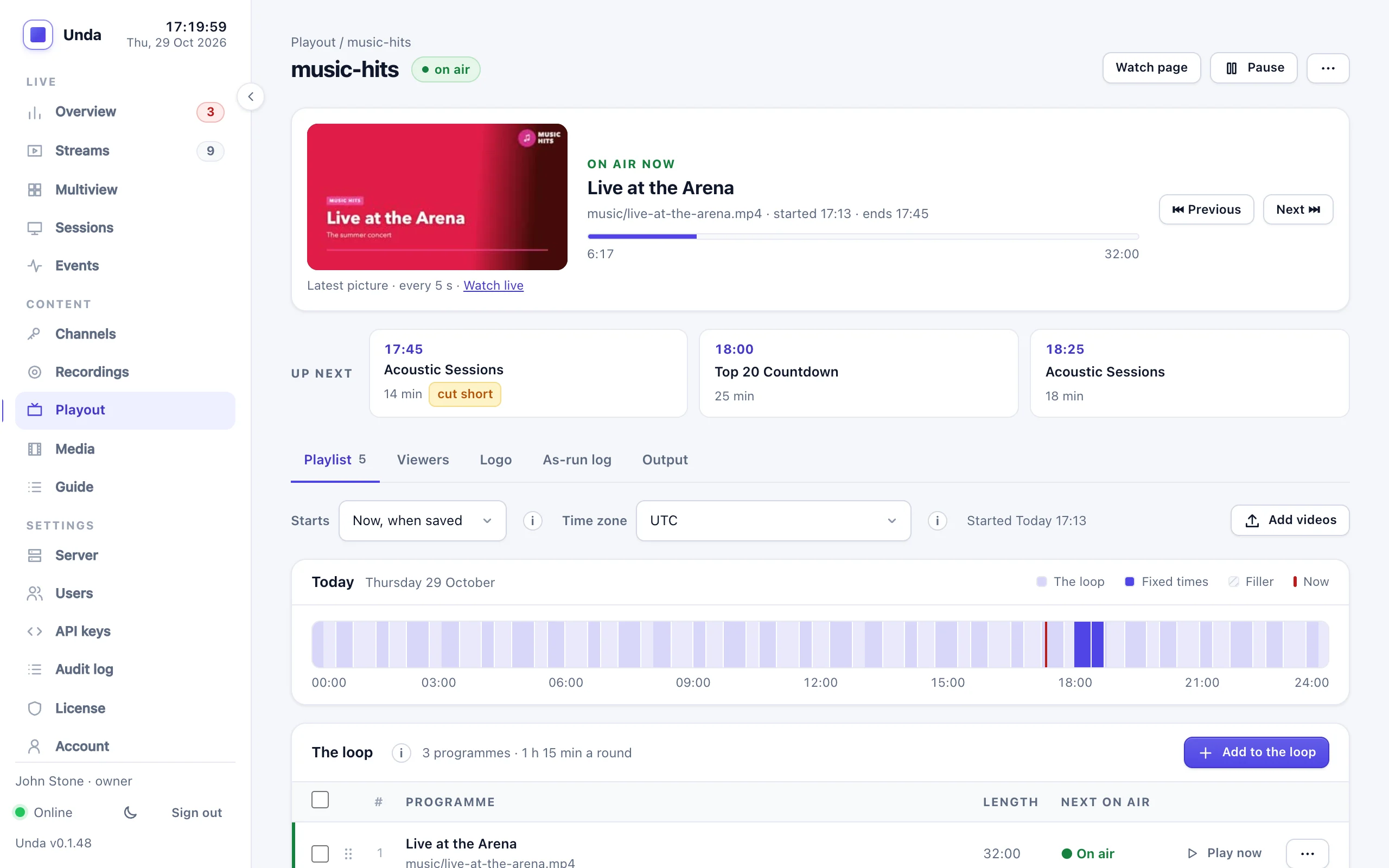
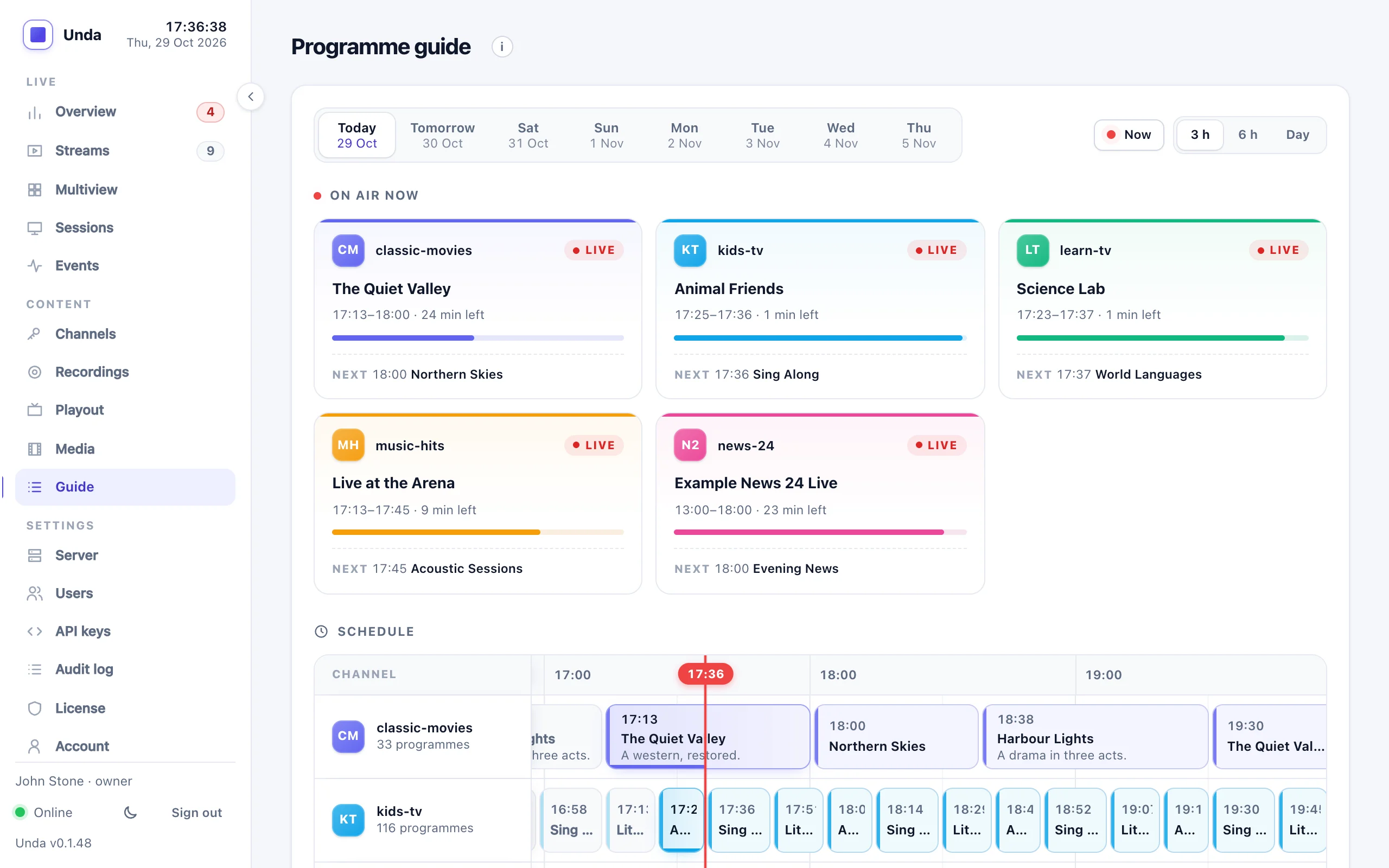
A 24/7 channel plays your files to a schedule and can hand over to a live stream. Its page shows what is on air and what comes next; the playlist is edited on the same page. Pause takes it off air until you choose Resume, which carries on where it stopped (see Pausing a channel). A channel's own videos are uploaded with Add videos on its playlist; the Media page holds every file, shared ones included. The Guide page shows every channel's programmes for the coming days, with the XMLTV link for IPTV apps (see Programme guide). A live channel's guide is typed in on its EPG tab (Streams → the channel).
Broadcast
TV and IPTV delivery, for operators and above, from what comes in to what goes out: UDP inputs (hardware encoders and IPTV headends), Pull inputs (streams the server fetches), MPTS inputs and MPTS outputs (multi-channel bundles), Relays (a transport stream passed on untouched) and Analyse (the stream analyser).
Server settings
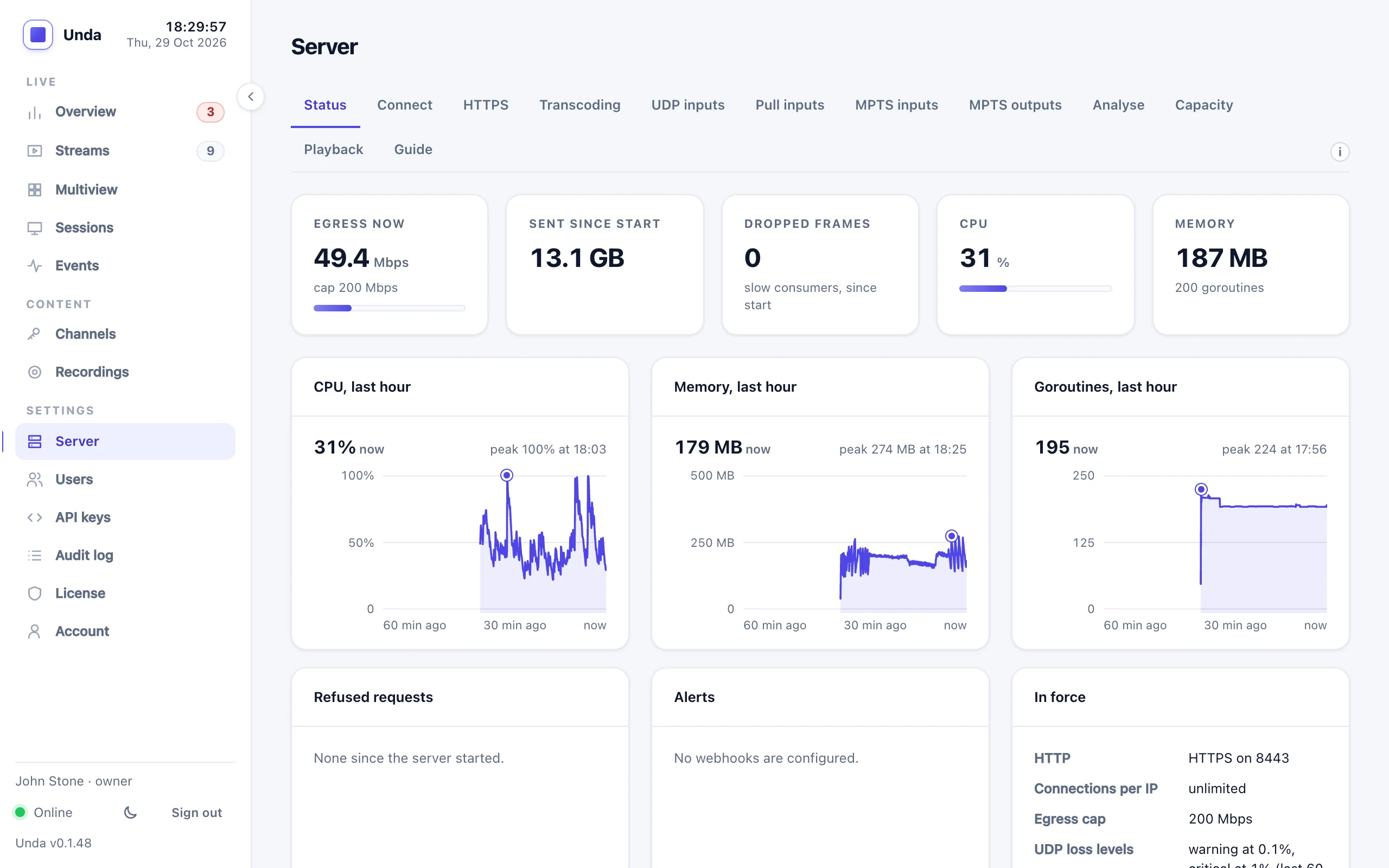
How the server is doing (bandwidth, CPU, memory over the last hour, refused requests), with tabs for its History over days and months, Capacity, Encoders (the addresses and keys to give OBS, vMix or an encoder), HTTPS certificates, Transcoding, Playback (signed links and rewind), the programme Guide links, API keys (admins), the License and your Account. Clients don't see this page: their Account is in the menu.
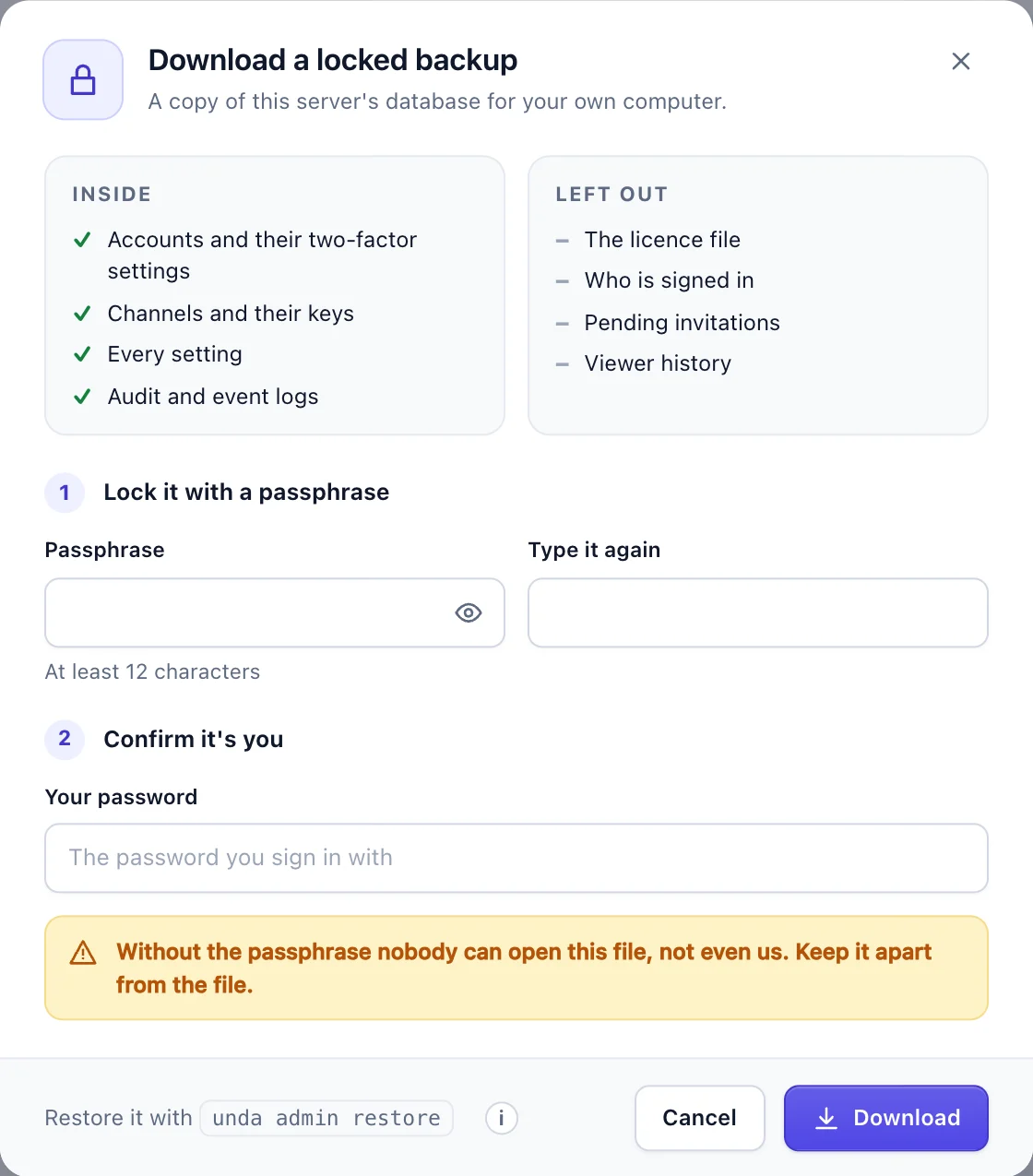
Database backups (Status tab, admins and owners) shows the newest daily copy, how many days are kept and when the next one is made. An owner can also download a locked backup to their own computer: a copy of the database locked with a passphrase they choose, after typing their password again. The dialog lists what is inside and what is left out (the licence file, who is signed in, pending invitations and viewer history). Restoring is one command on the server; see Backups and upgrades.
License
Server → License (operators and above).
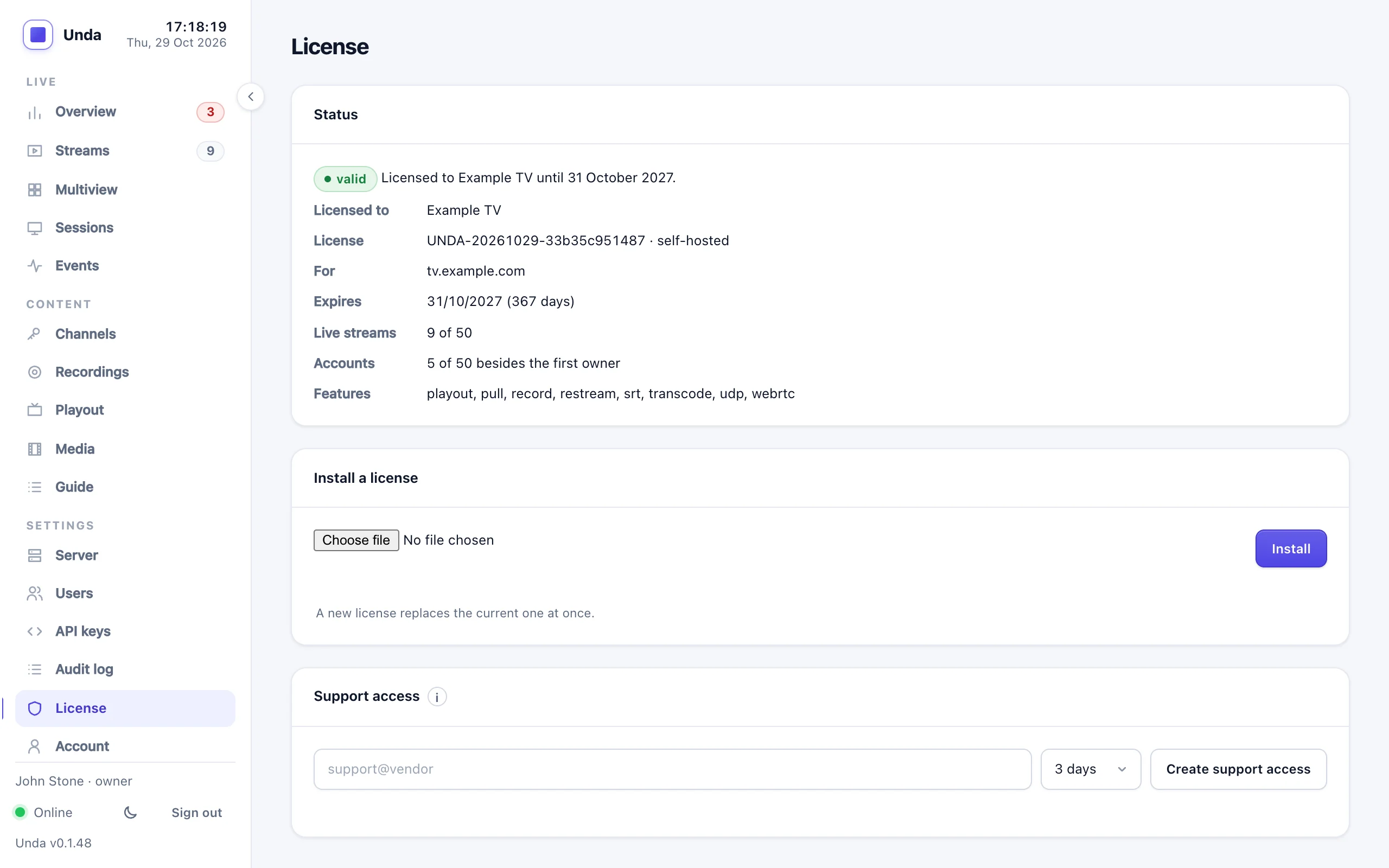
Who the license is for, when it ends, how much of it is in use, and which features it includes. The owner installs a new license here, and can give the vendor time-limited support access. See License.
Light or dark
The dashboard is light by default. The moon button at the bottom of the sidebar switches to dark, and Server → Account → Appearance (clients: Account → Appearance) can follow your computer's setting instead.